Podcast and Live
Podcast
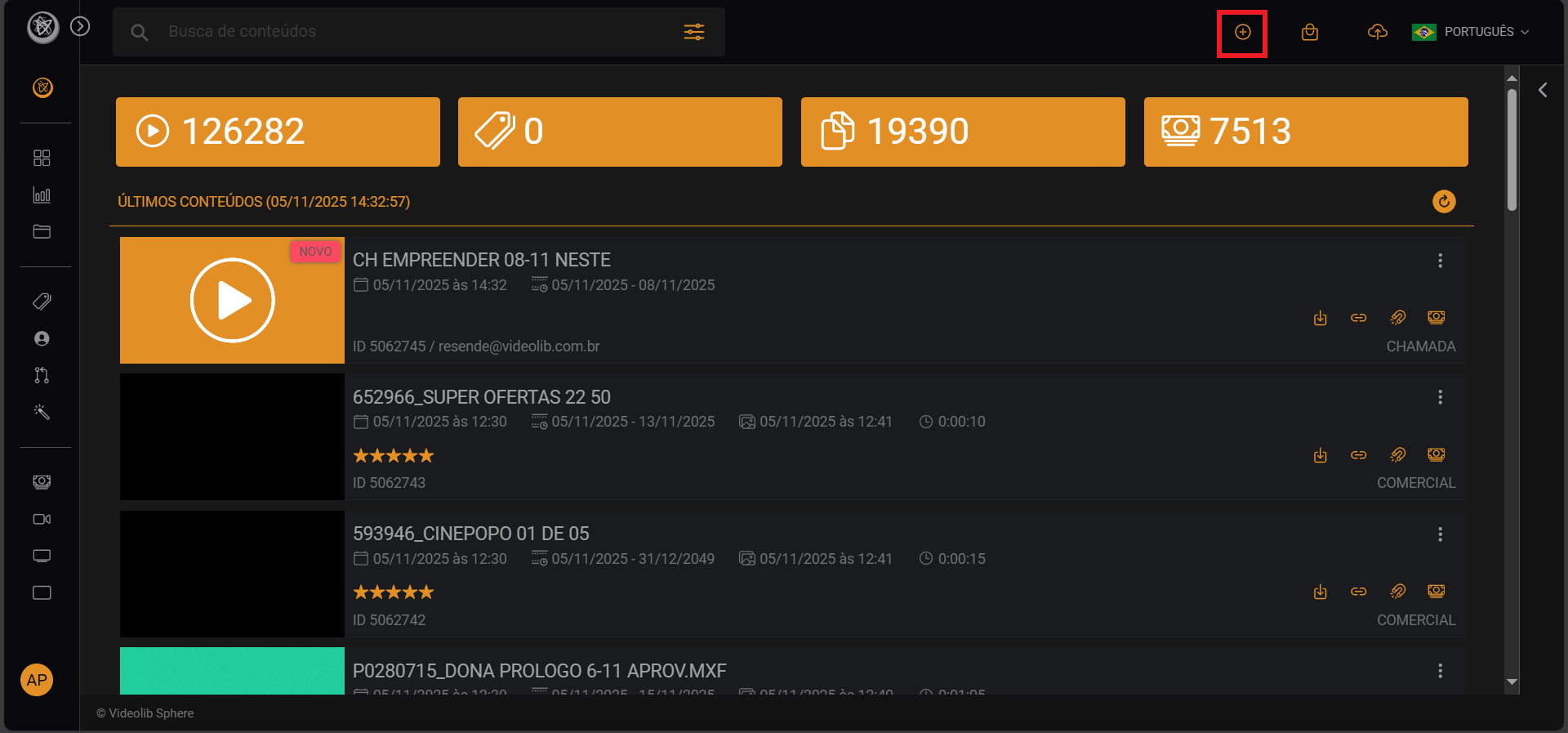
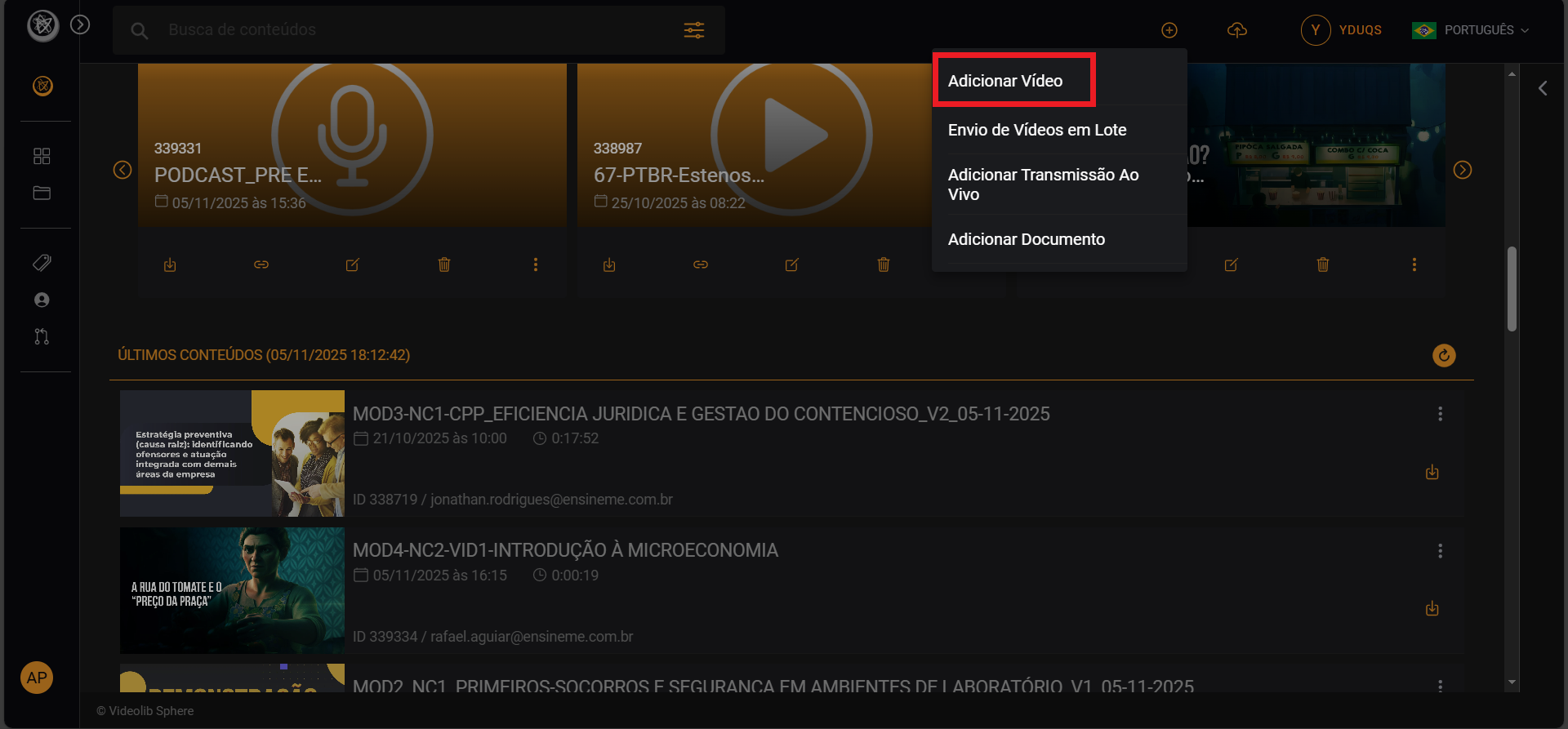
- Click "Add Video" for a podcast:
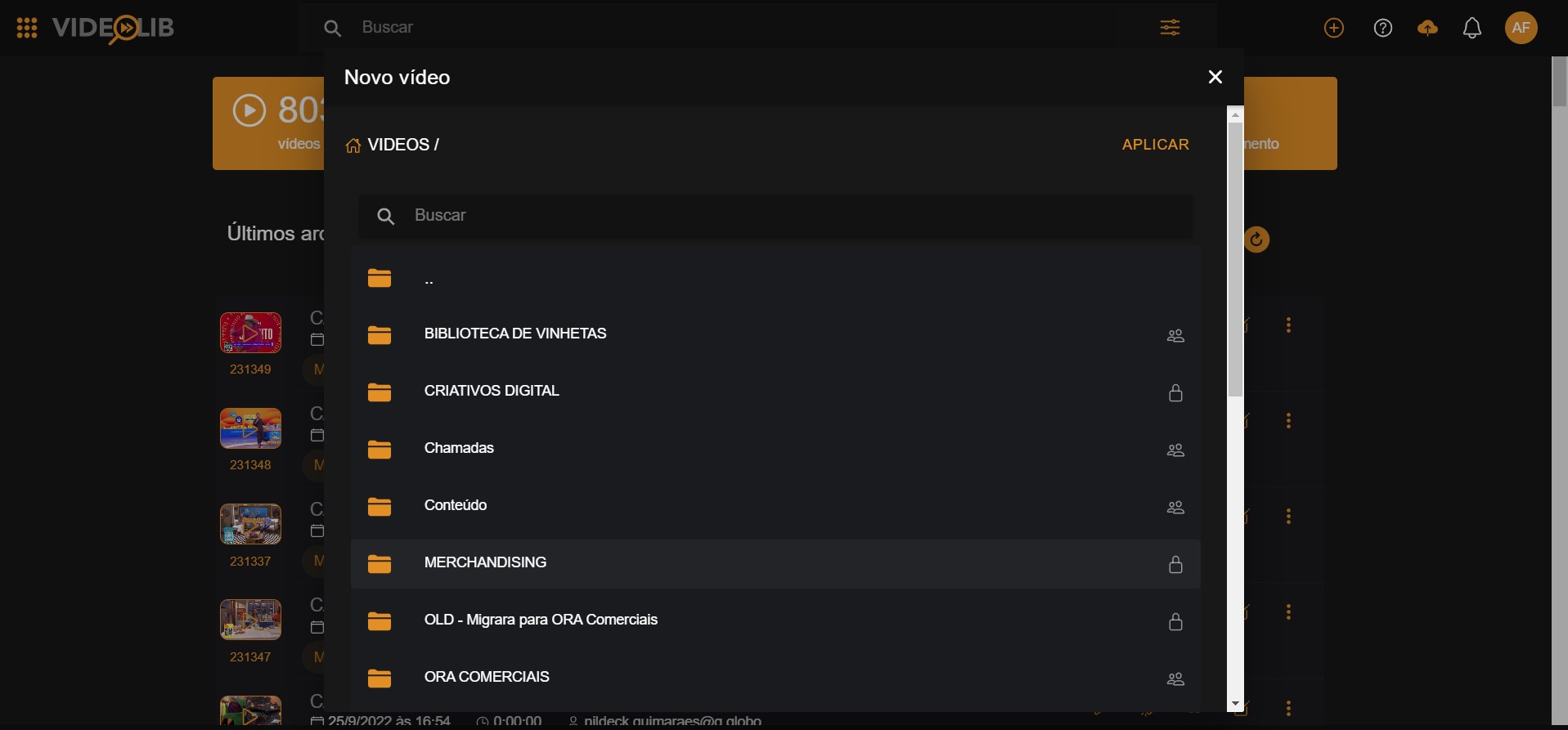
- Fill required information and choose location:
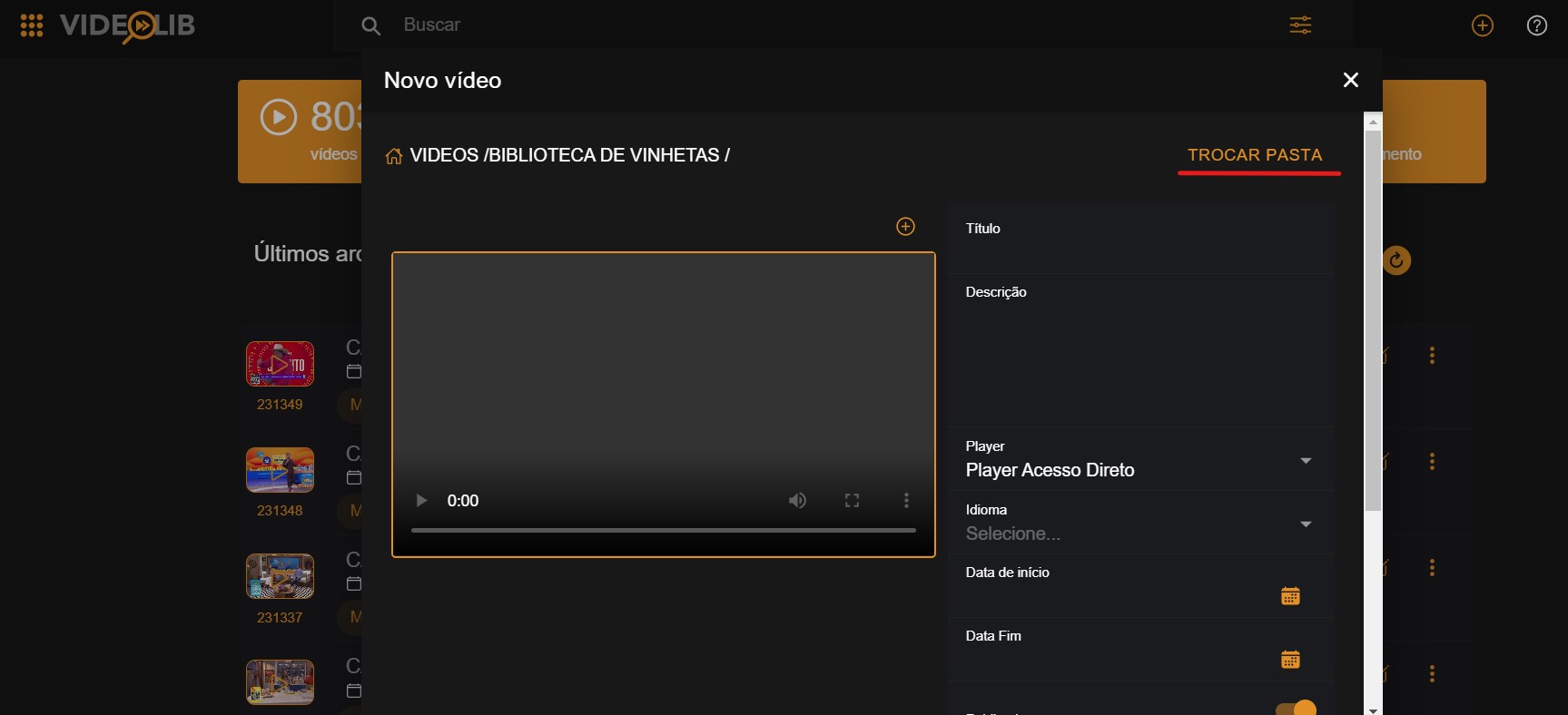
- Complete details like title, description, and format:
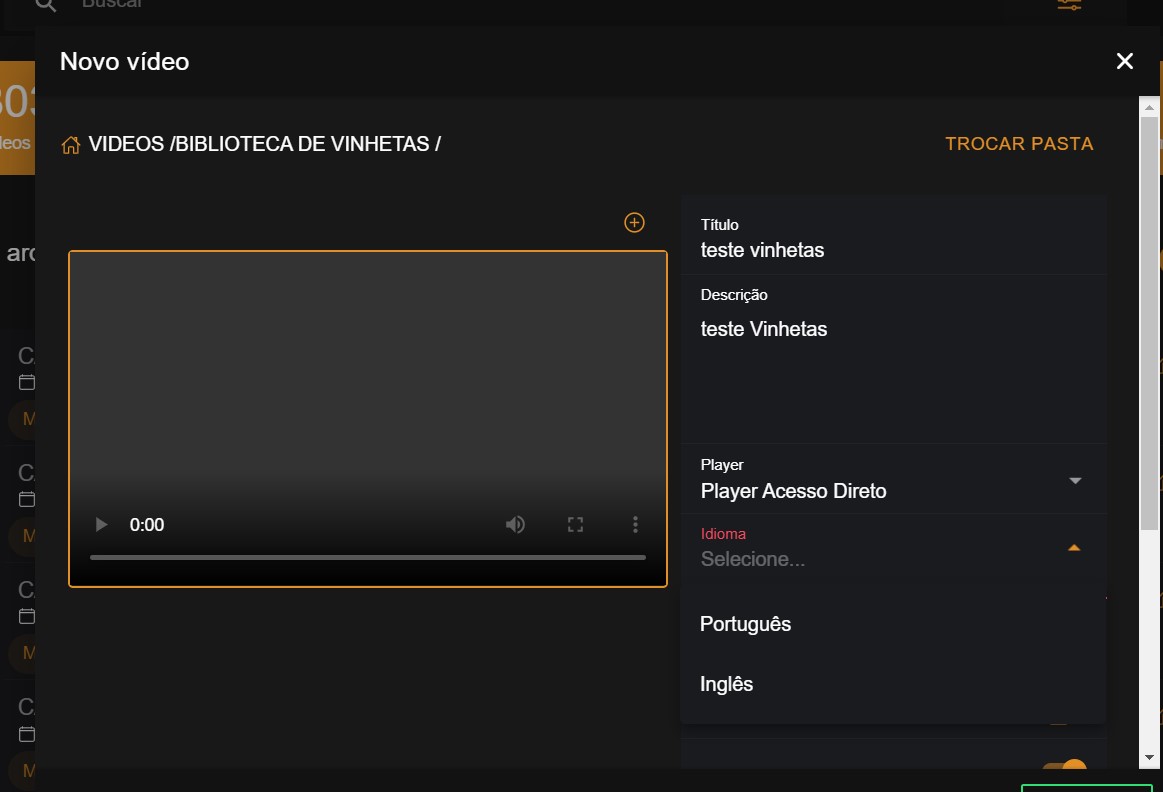
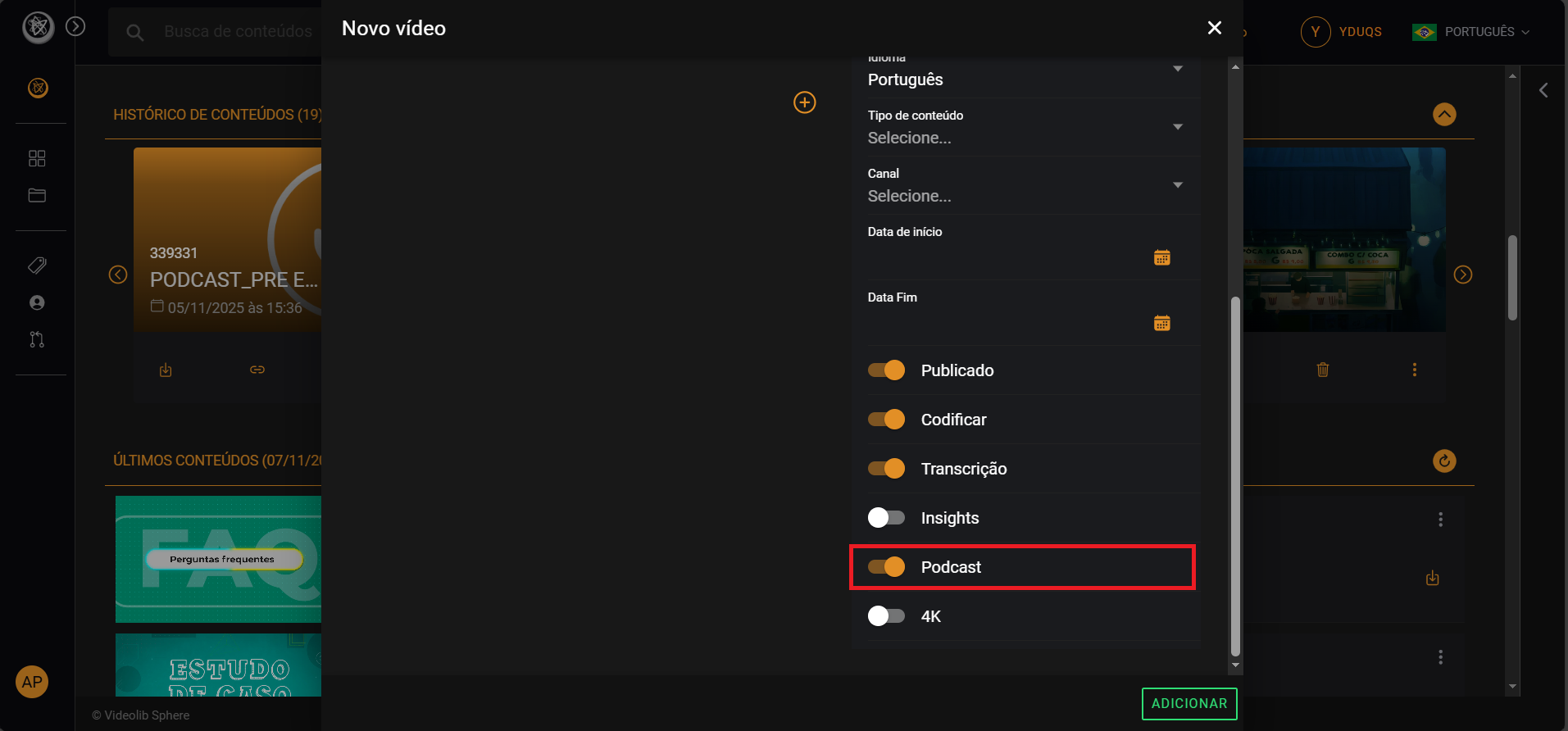
- Upload the file using "+". For audio files, the "Podcast" option is selected automatically.
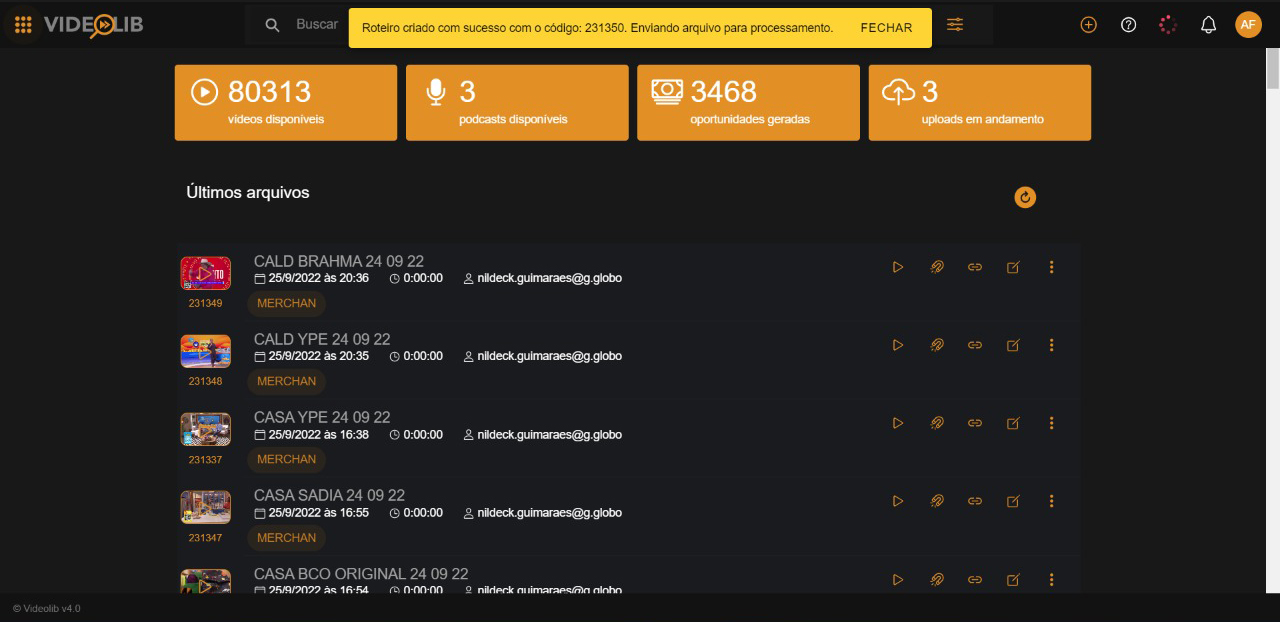
- You will then receive a success message.
Live
Live Concept
With VideoLib, you can run up to 20 simultaneous streams and later watch recordings as VOD.
Live structure has two elements: Scripts and Studios.
- Studio: creates the ingest channel (URL) used by streaming software.
- Scripts: manages player URLs and allows starting/stopping live transmission.
Live Procedure
Creating a Live
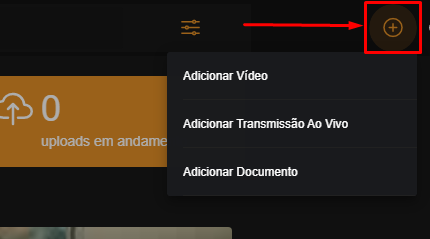
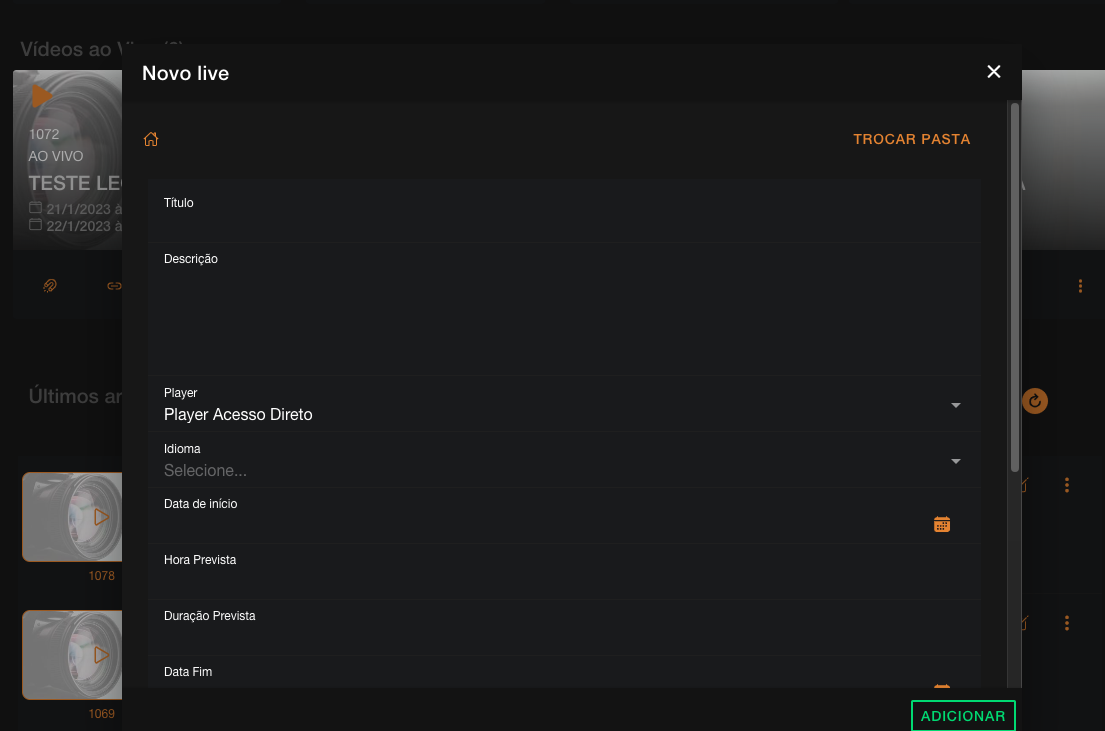
Go to "New Item" and select "Add Live Stream":
Fill in live data and click Add.
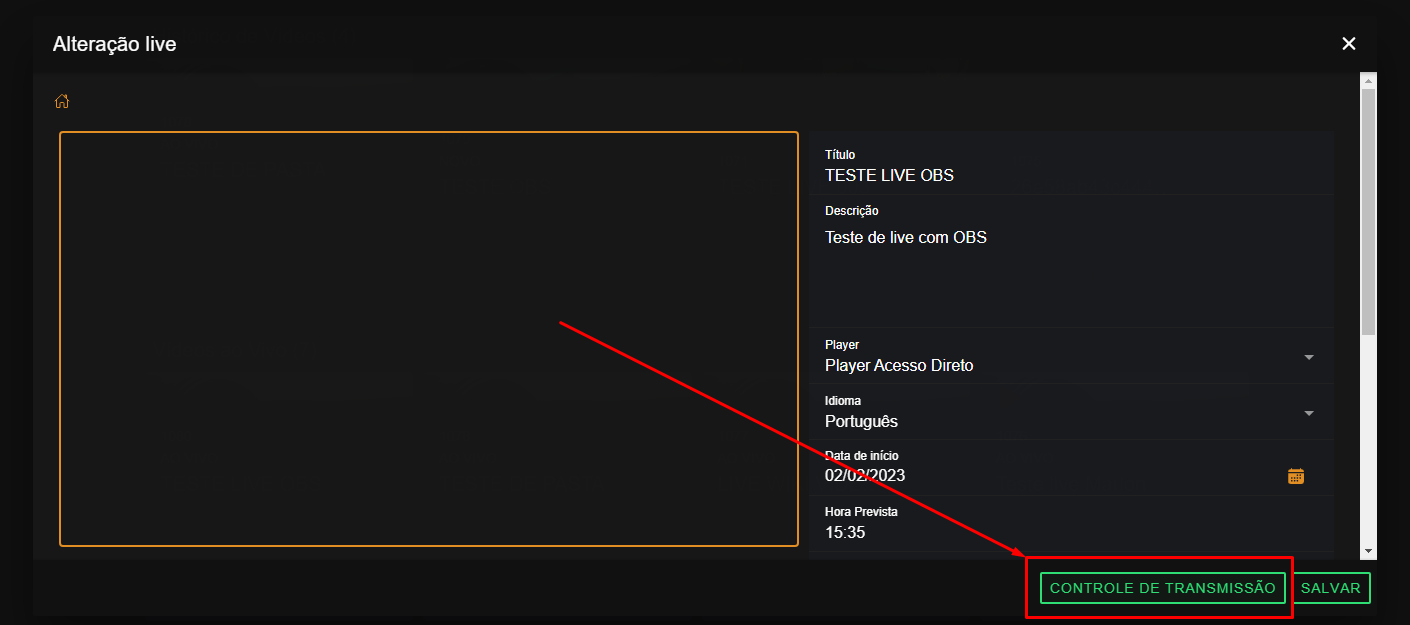
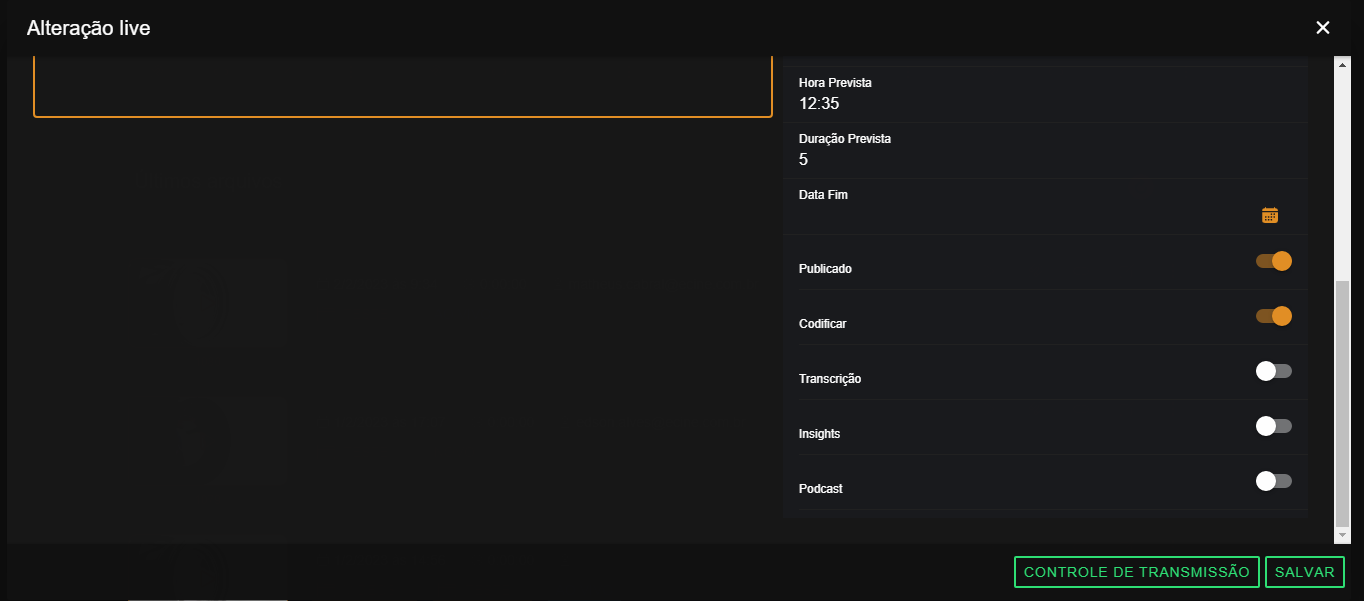
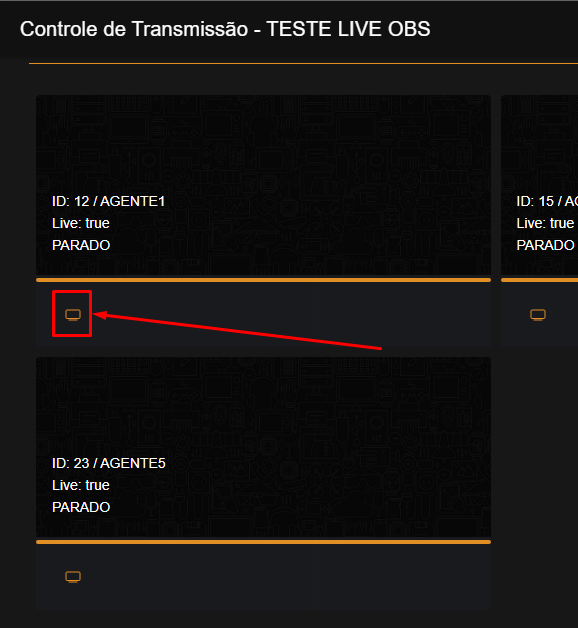
Review data and click "Transmission Control".
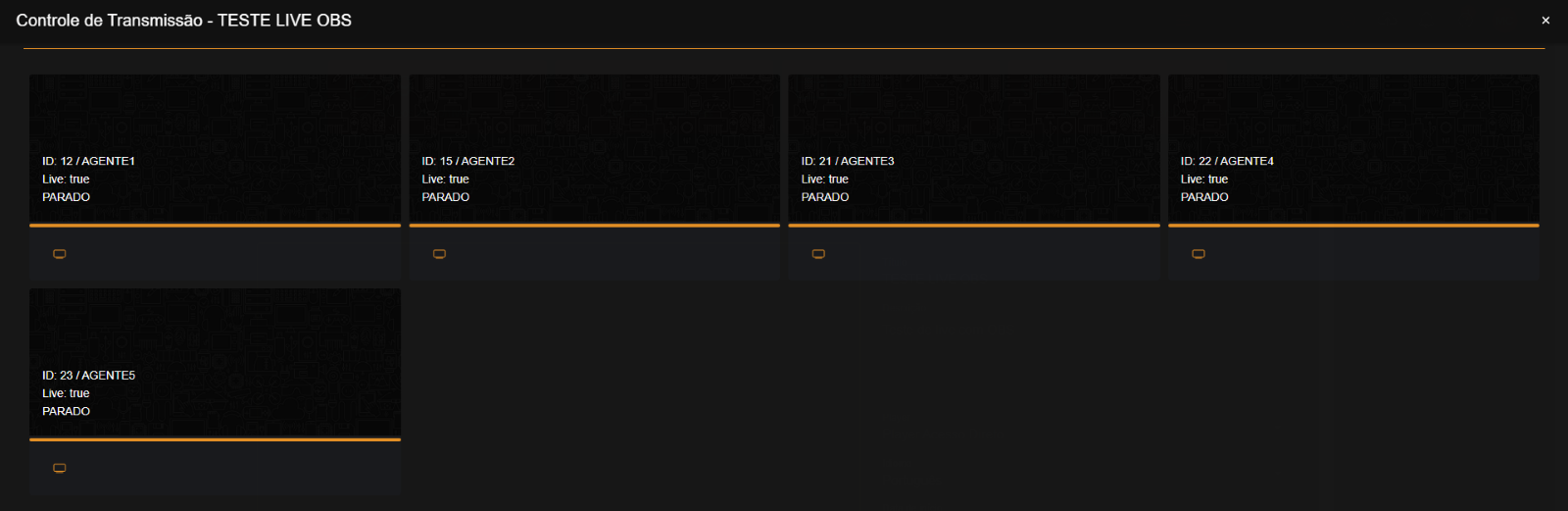
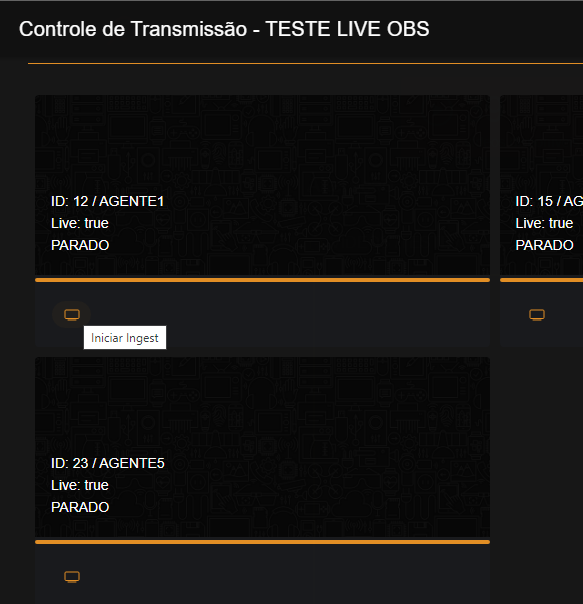
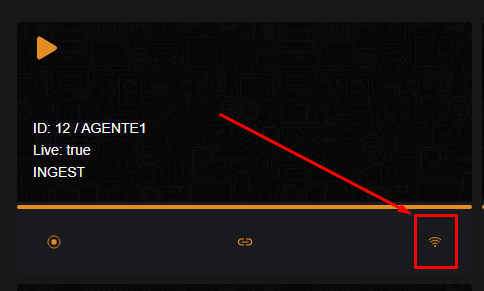
Start ingest on the chosen agent.

Configure your live app (for example OBS) with the ingest URL.
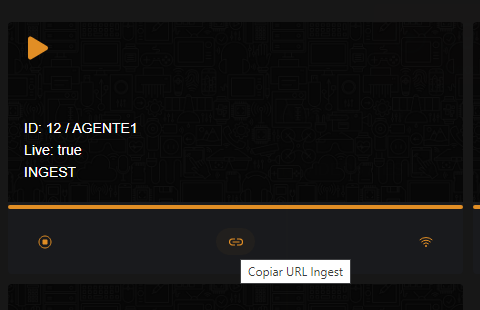
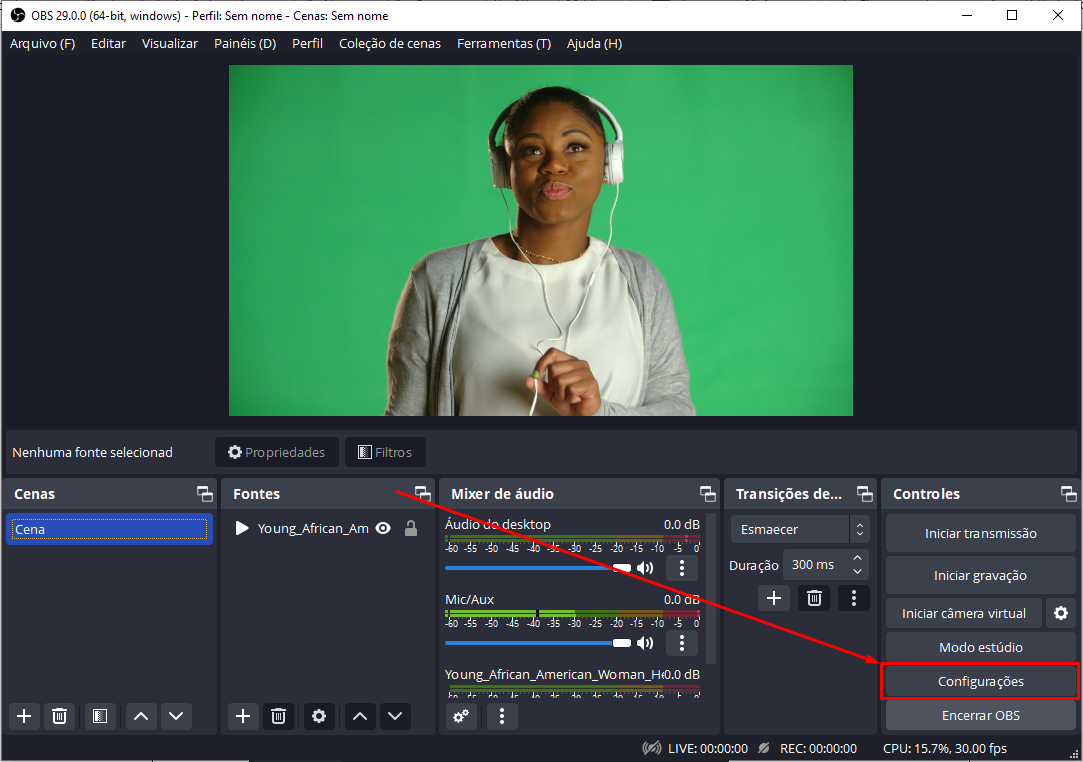
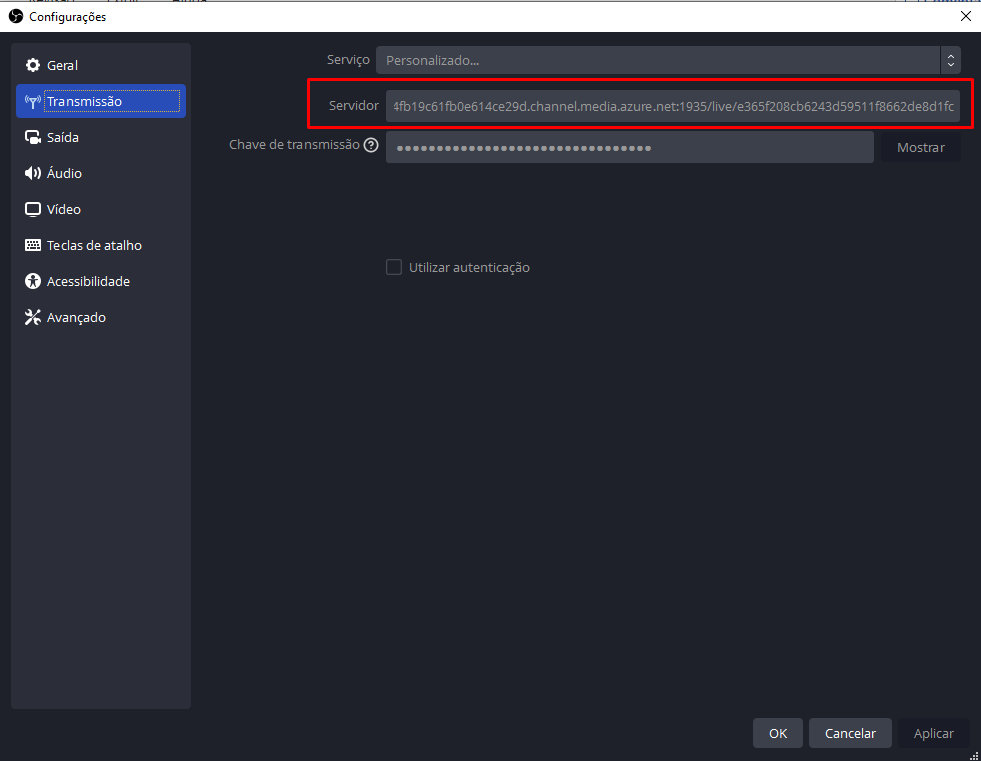
The transmission key is the final segment of the ingest URL.
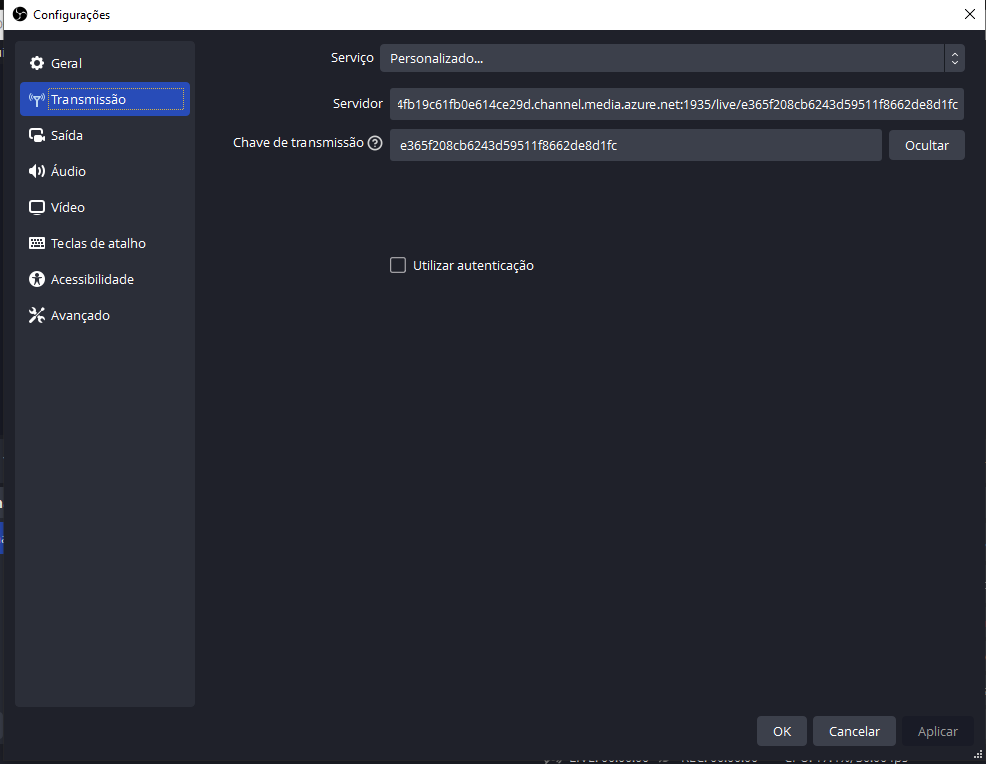
Click Apply and OK, then start streaming in OBS.
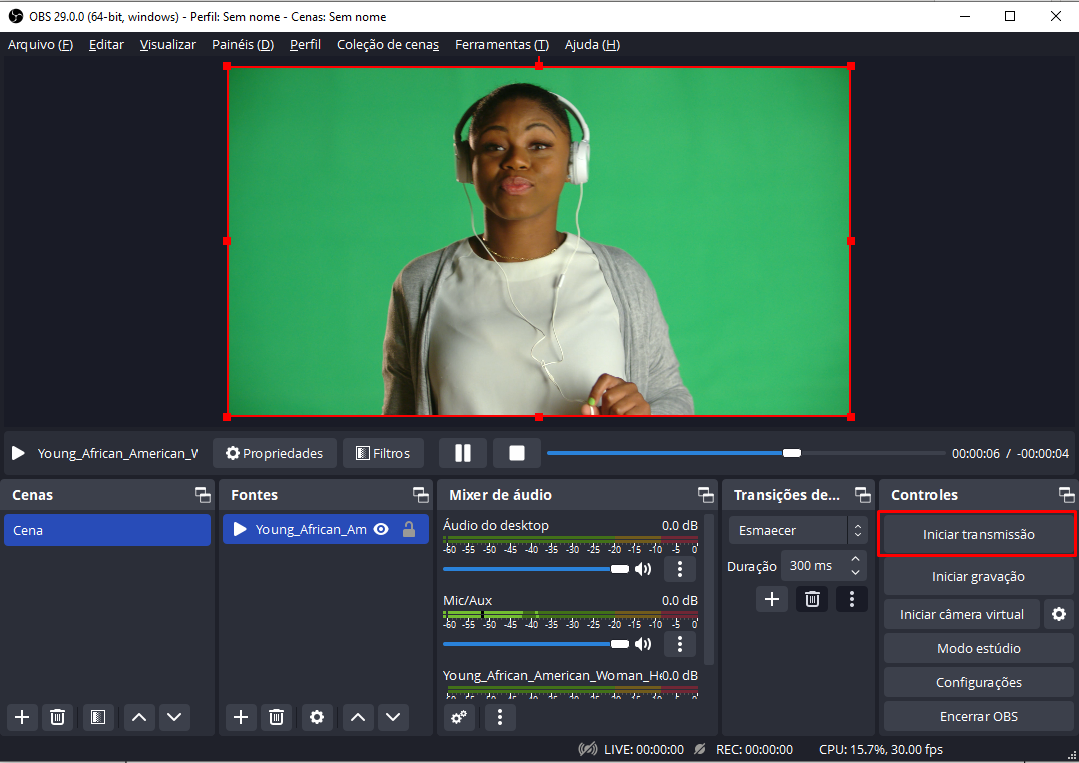
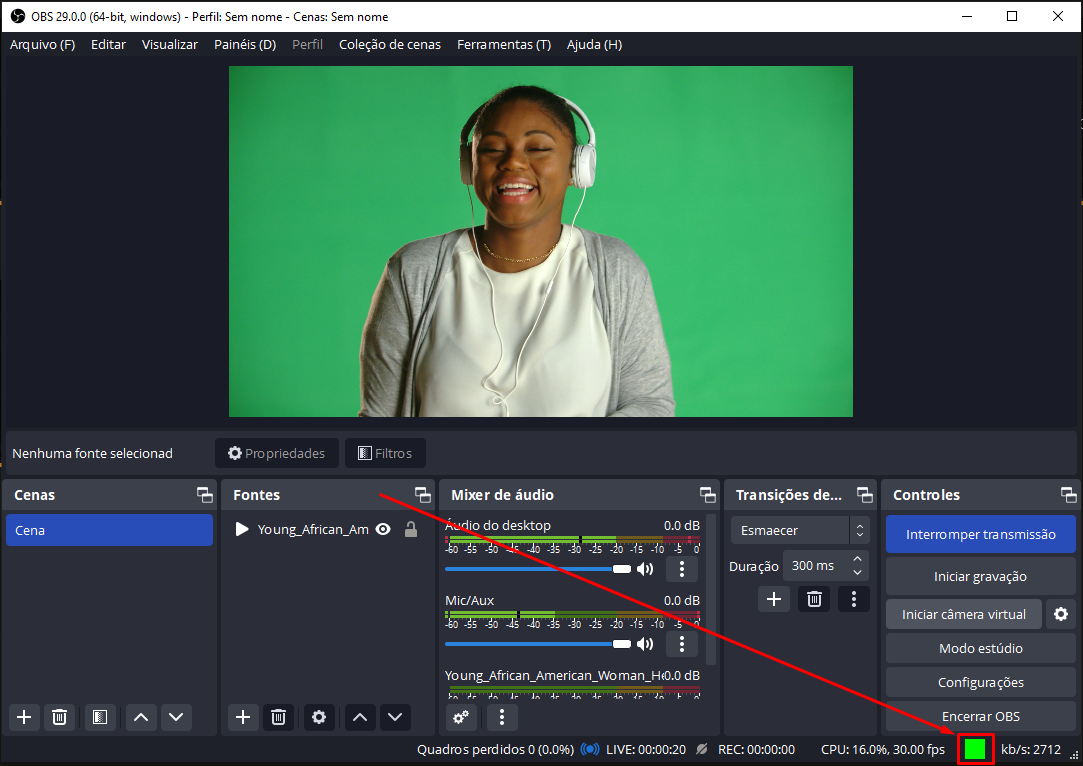
Then start transmission in VideoLib control.

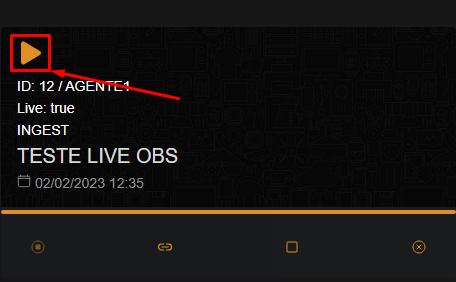
Use play preview in the top-left to monitor audience output.
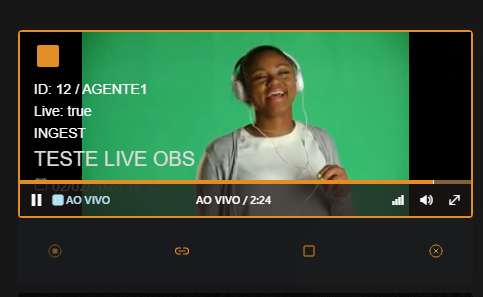
To finish and keep recording, click "Finish and Save".
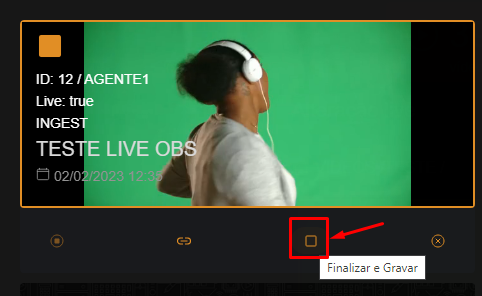
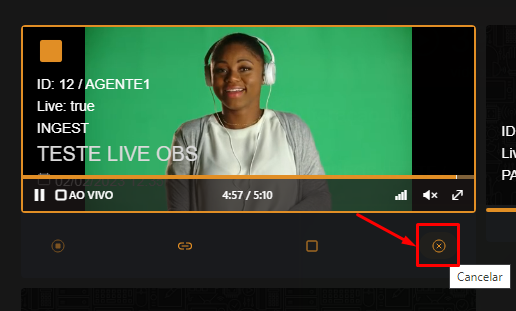
If you cancel, the stream is not saved.
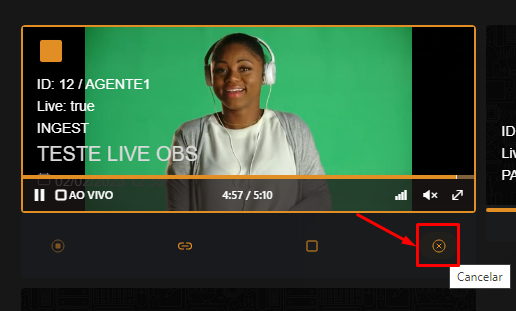
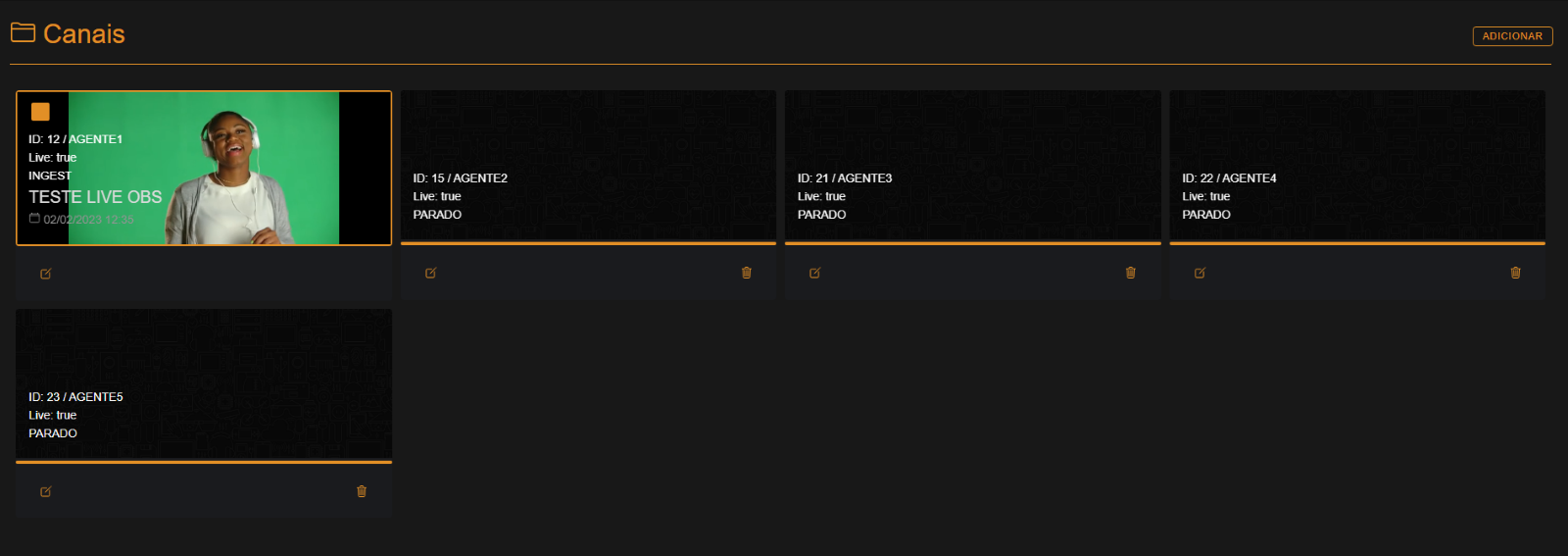
You can also monitor lives through Channels in the side menu.


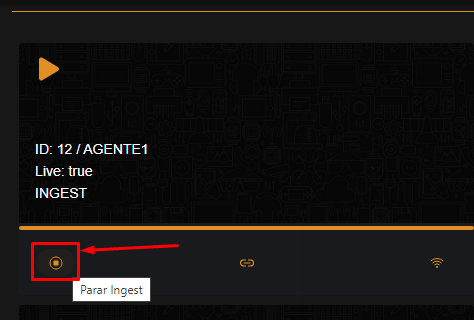
Canceling Live
To stop before going live, stop ingest first.
Moderation
Start chat moderation by clicking Start.
Main moderation features:
Individual Message
Send/reply to a specific chat participant.
Message to Everyone
Send a message to all participants.
Message Filter
Filter messages by replied, unread, or deleted.
Ban
Ban a user from chat.