First Steps
Creating your first videos
Here we help you start your VideoLib journey by creating a video.
- First, find where to create a new item on the dashboard:
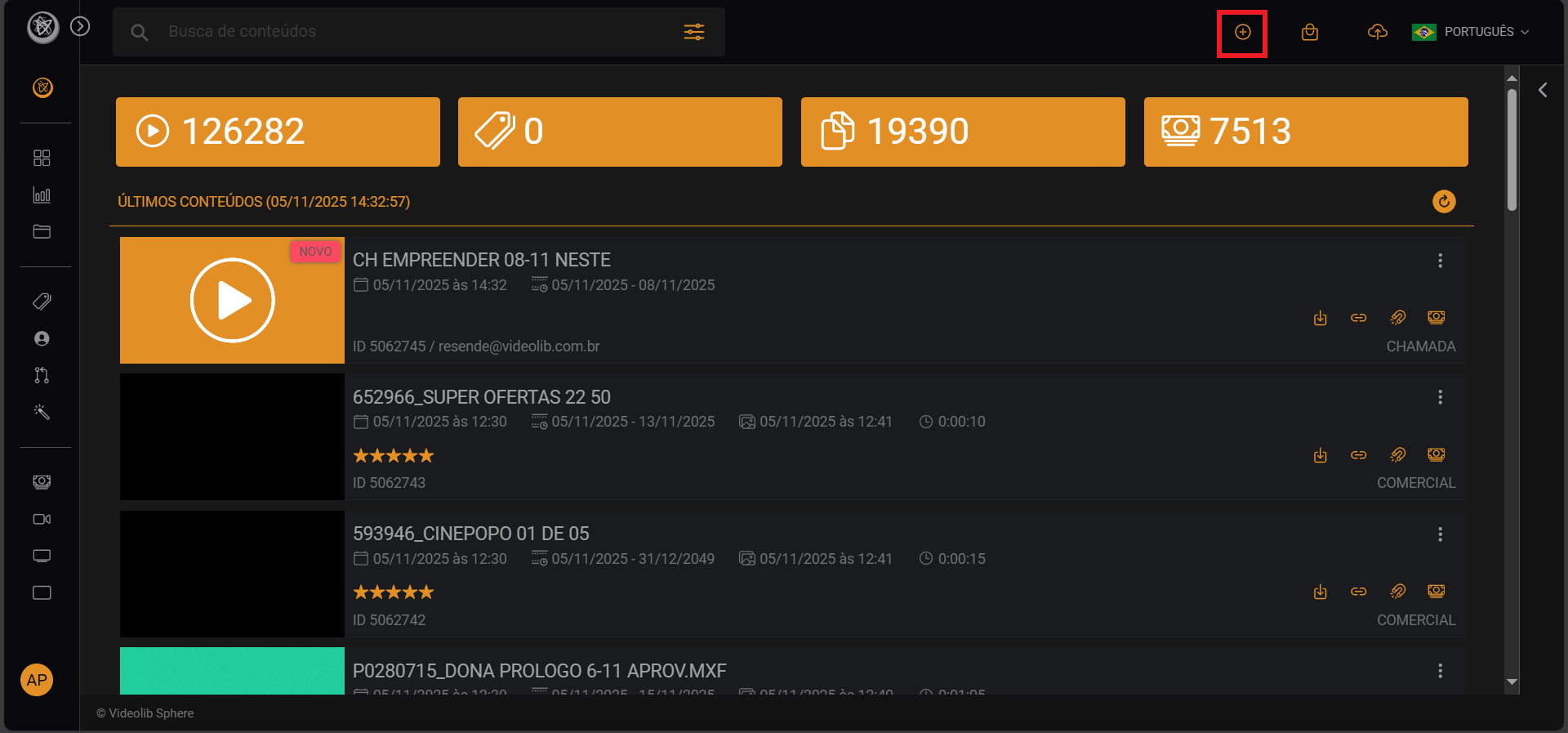
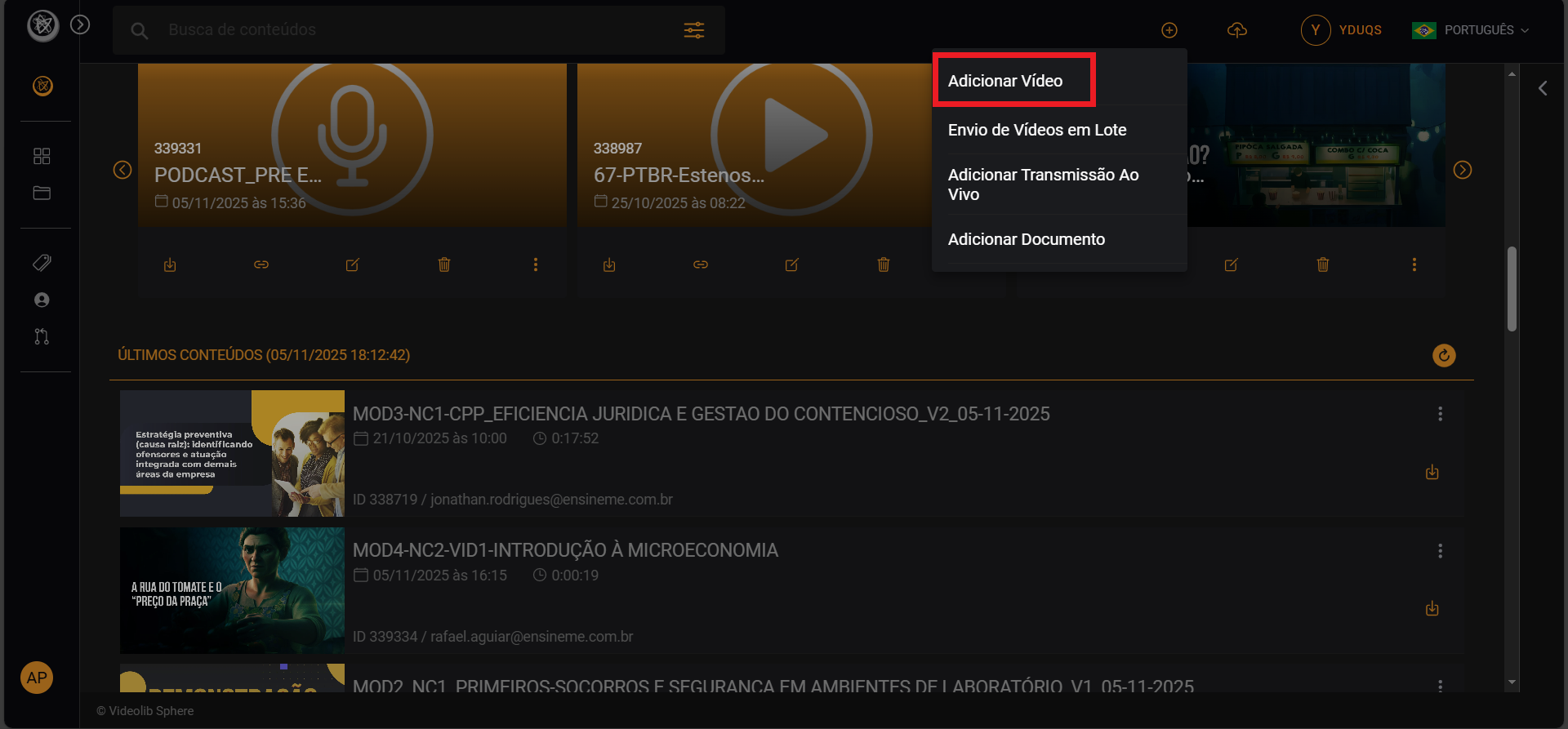
- Select "Add Video" for a VOD:
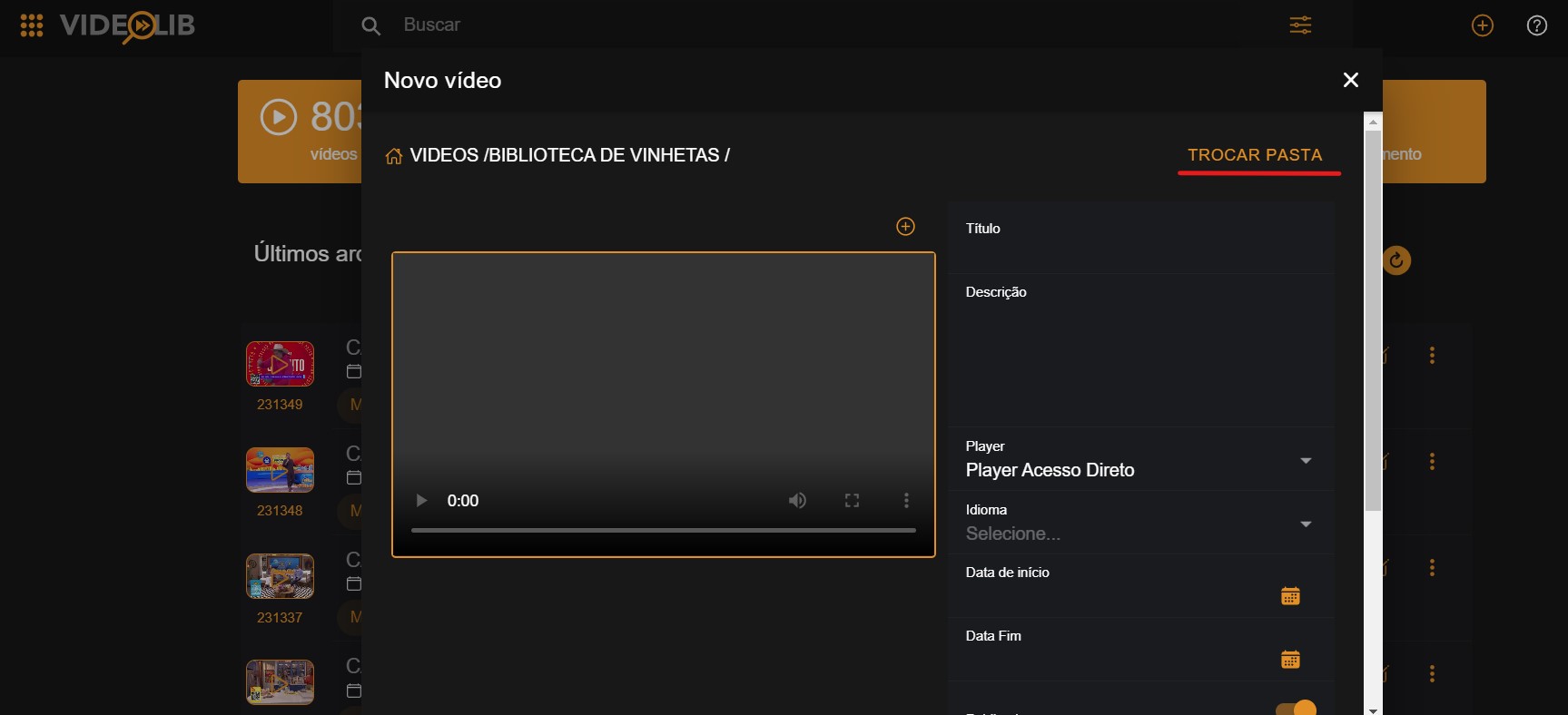
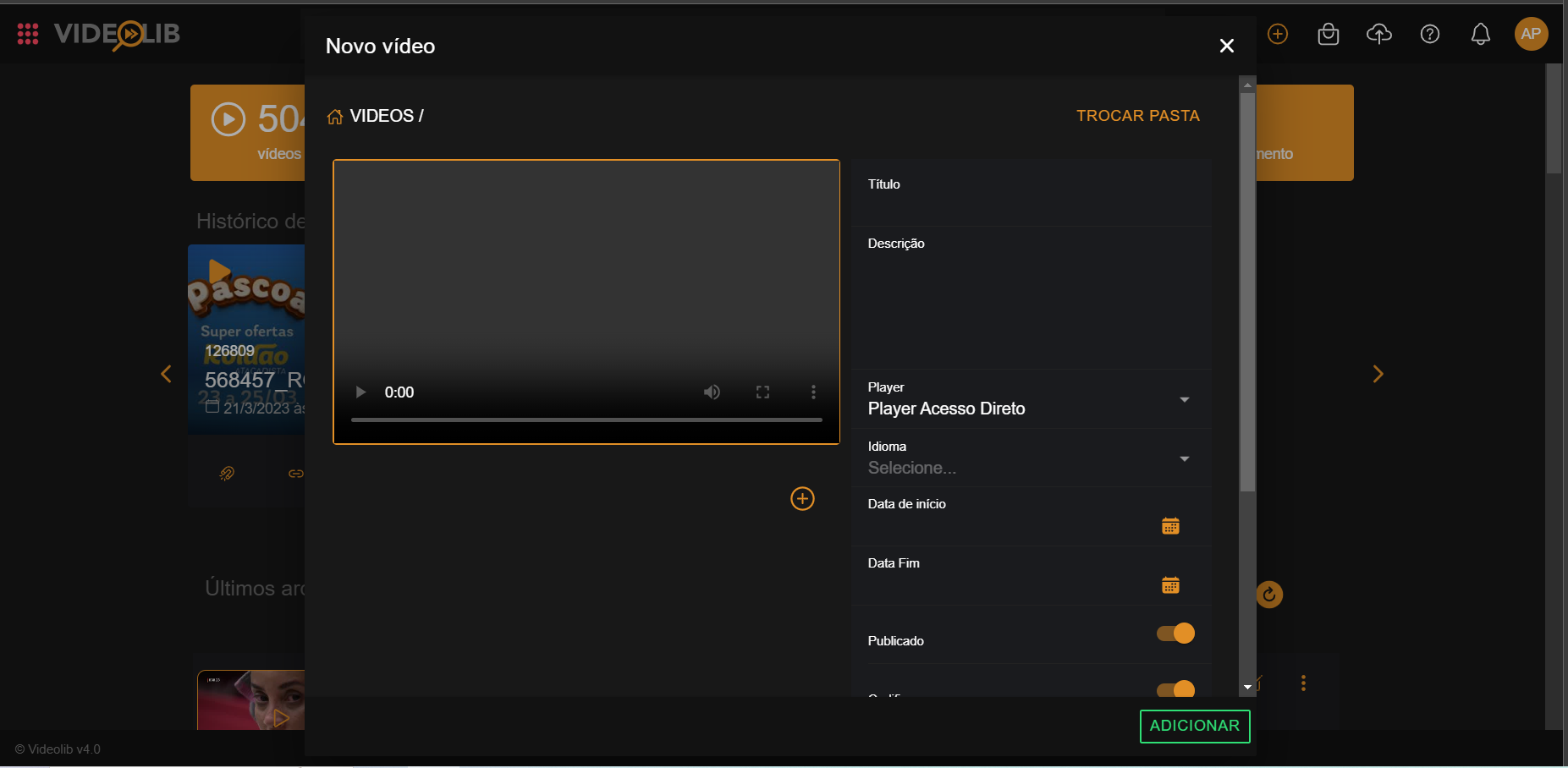
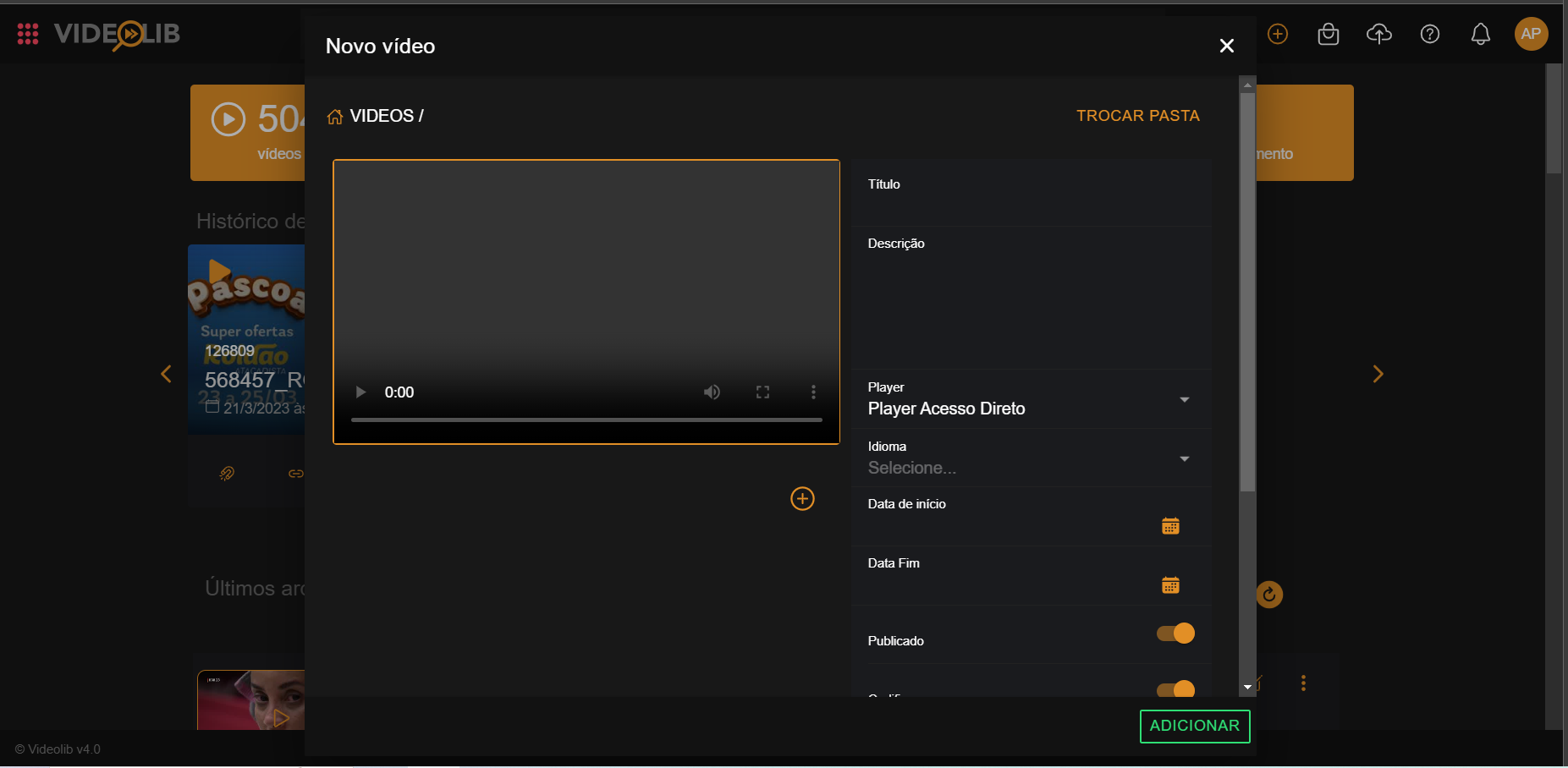
- Fill in video information and choose the destination folder:
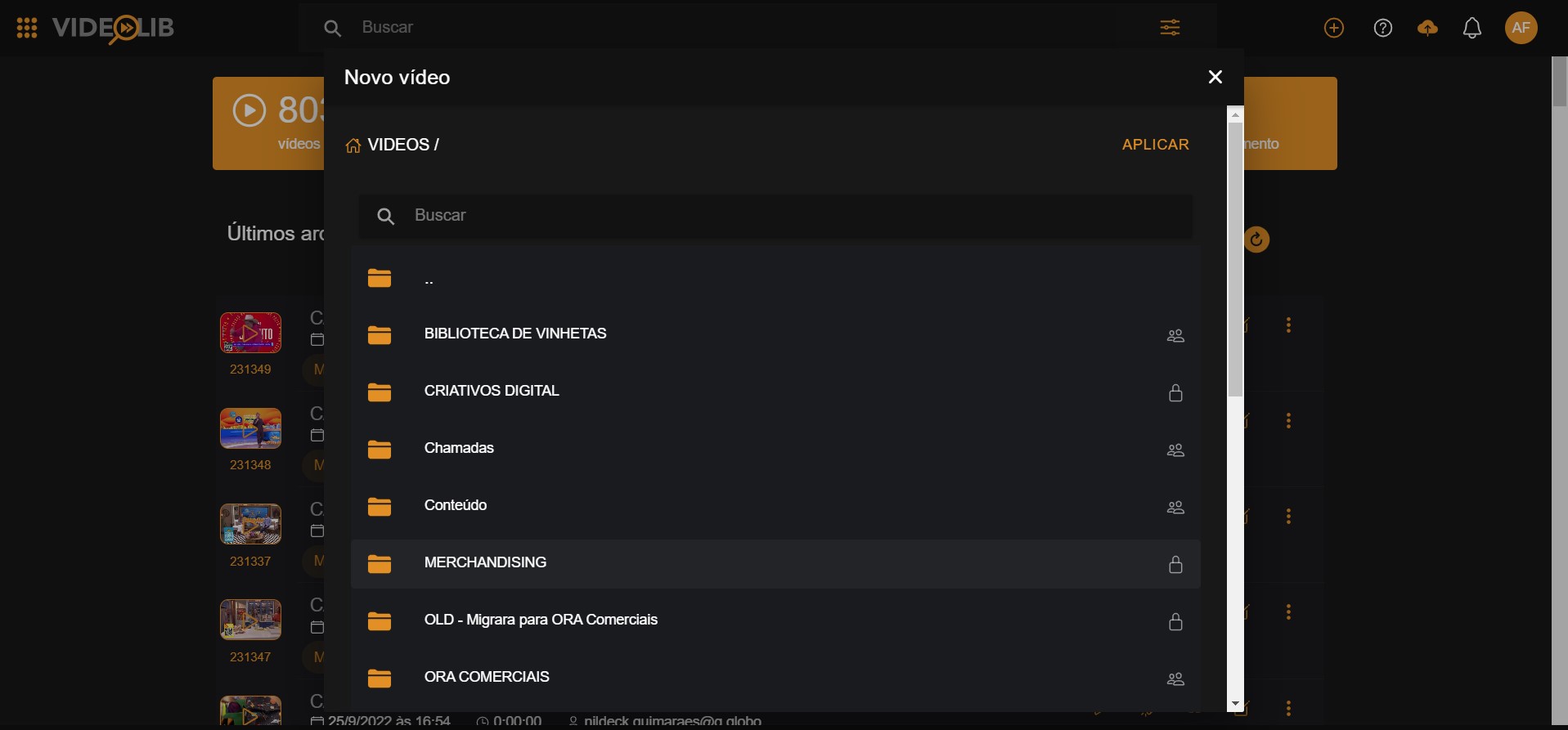
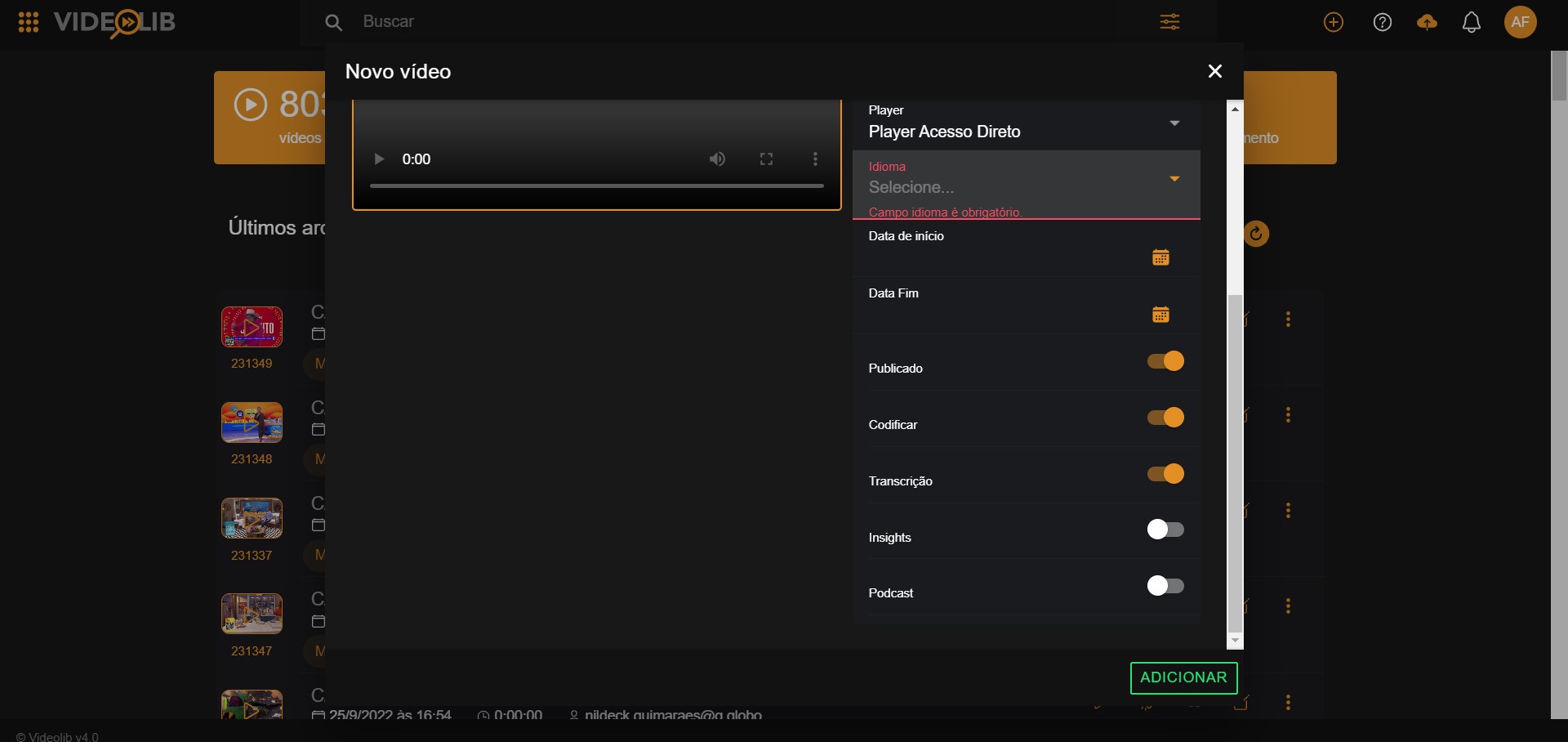
- Add the remaining required information:
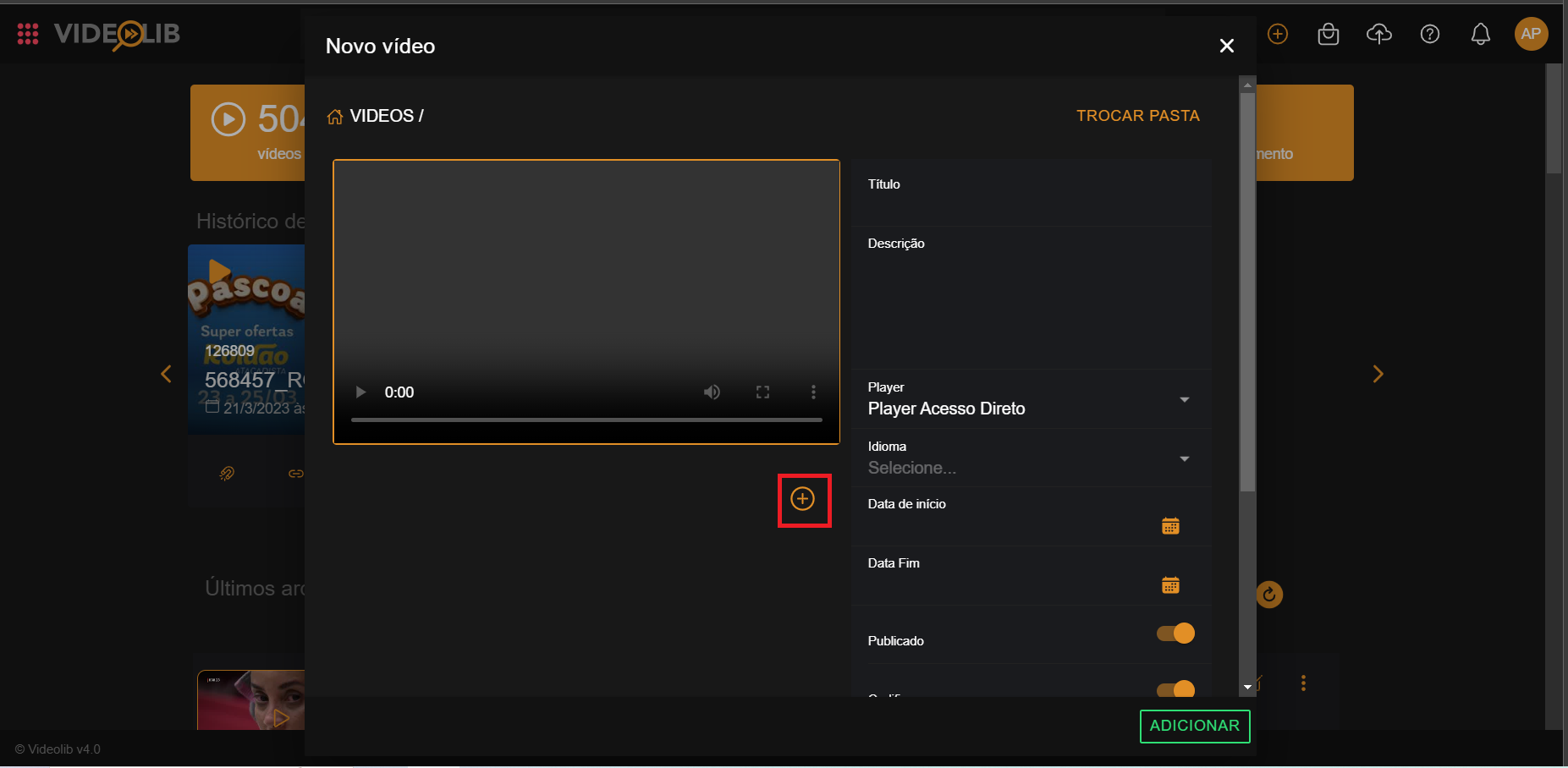
- Click "+" below the video window to upload the file:
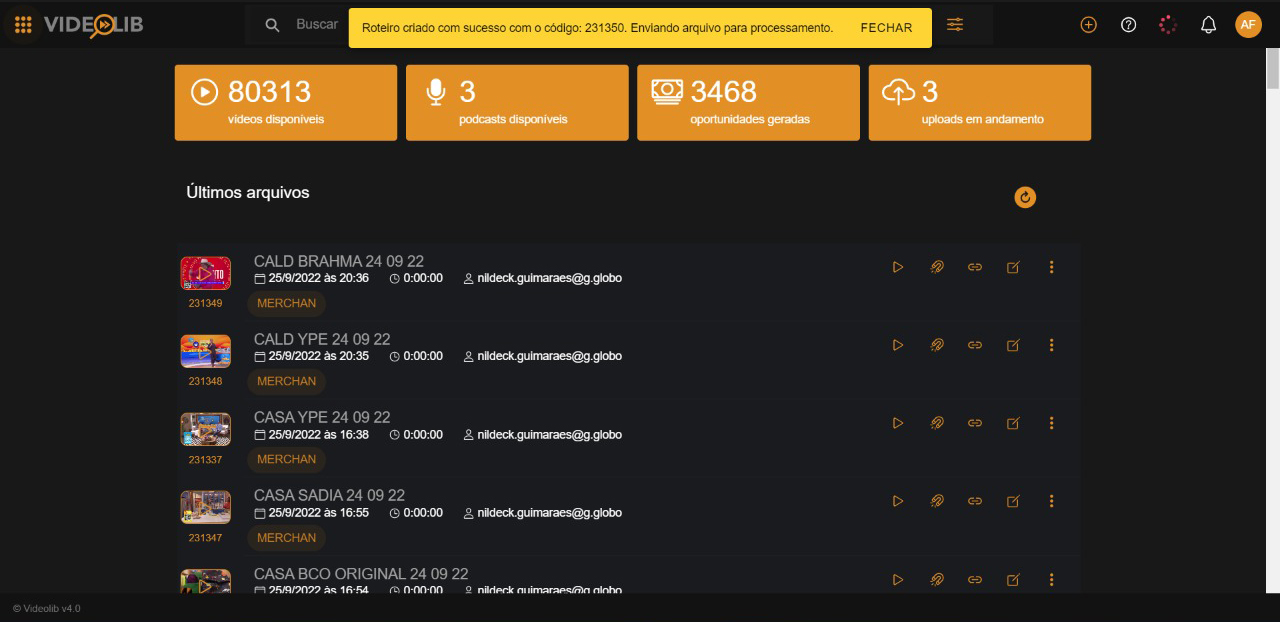
- After finishing, you receive a success message:
New Item
"New Item" helps upload different types of content.
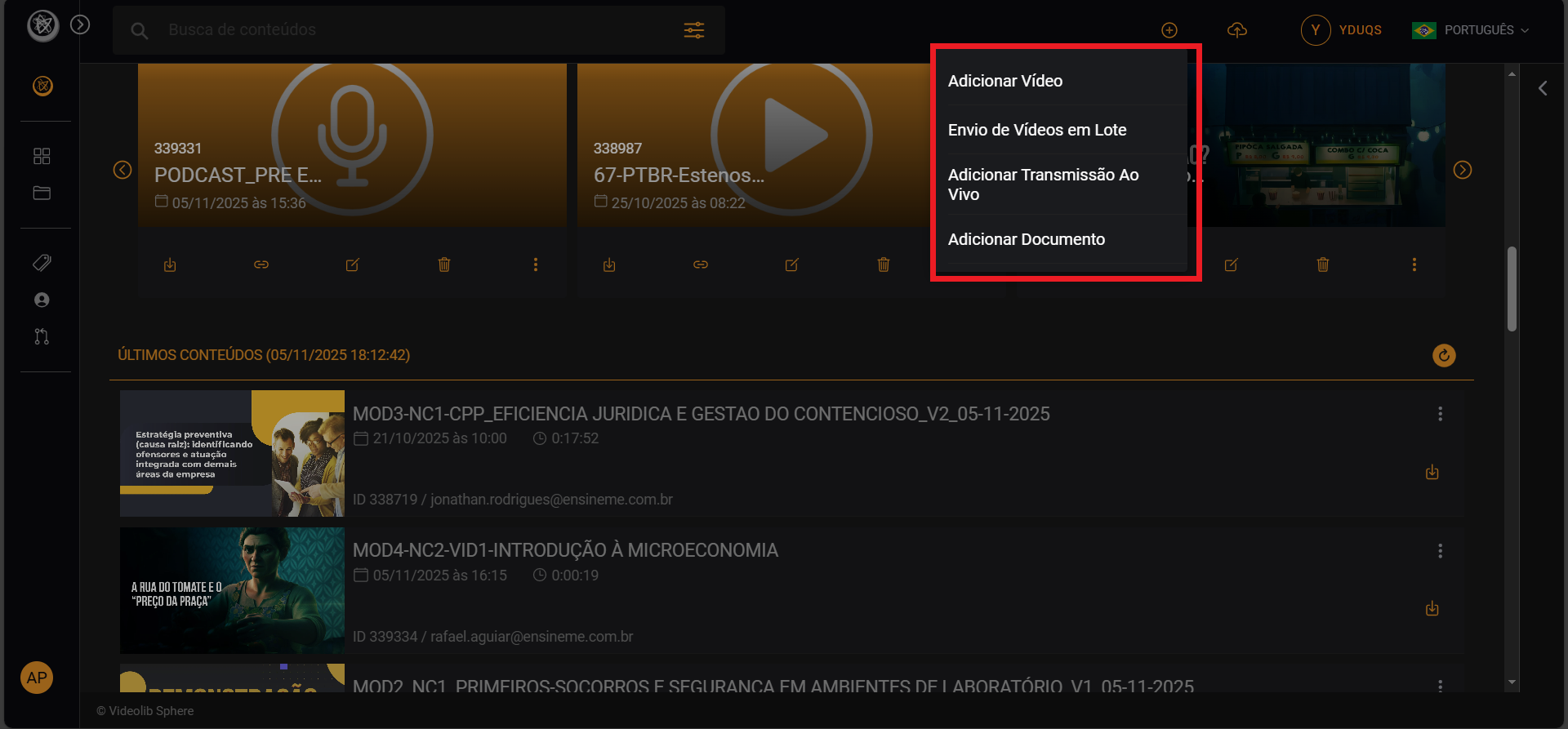
Add Video
Required fields include movie title, start/end dates, language, and description.
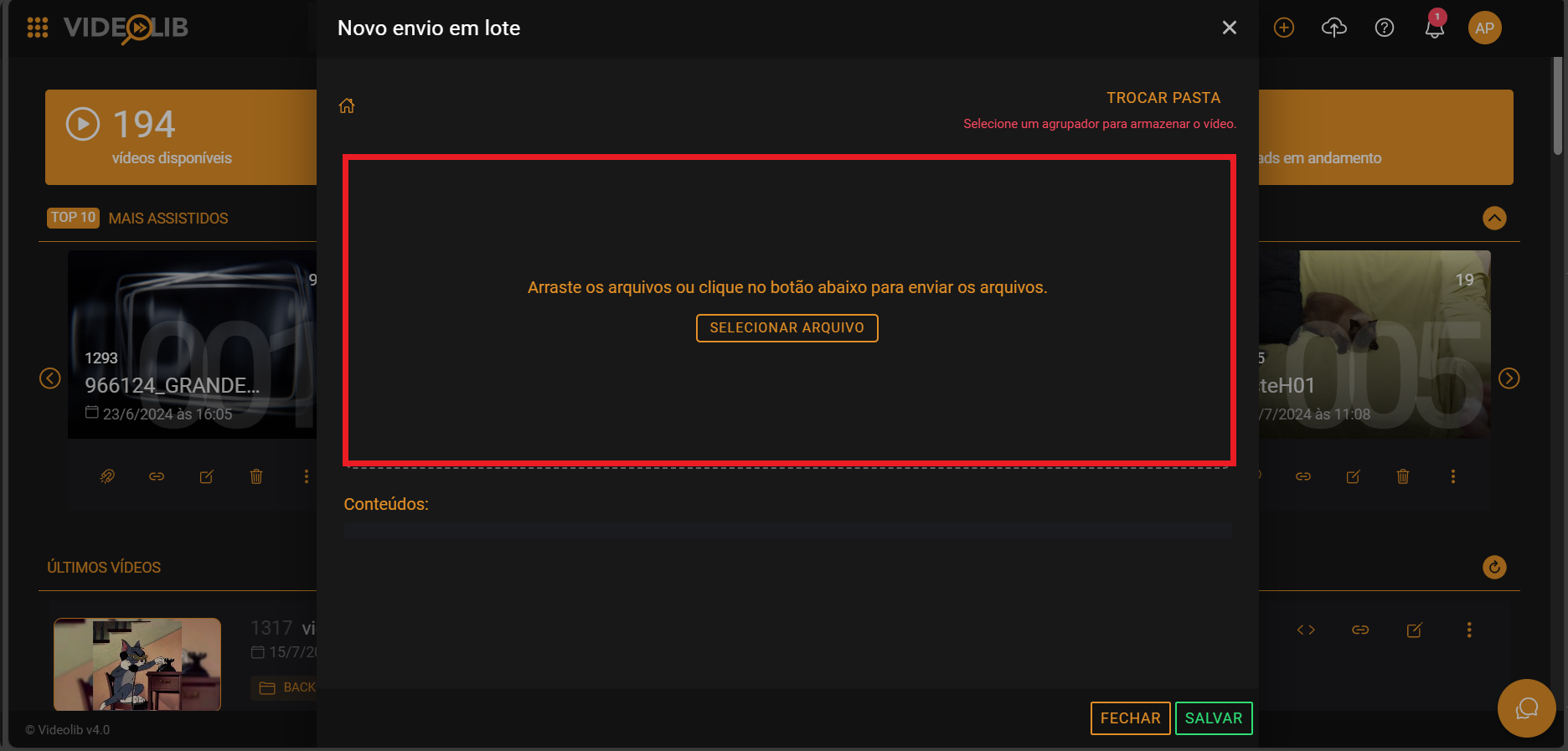
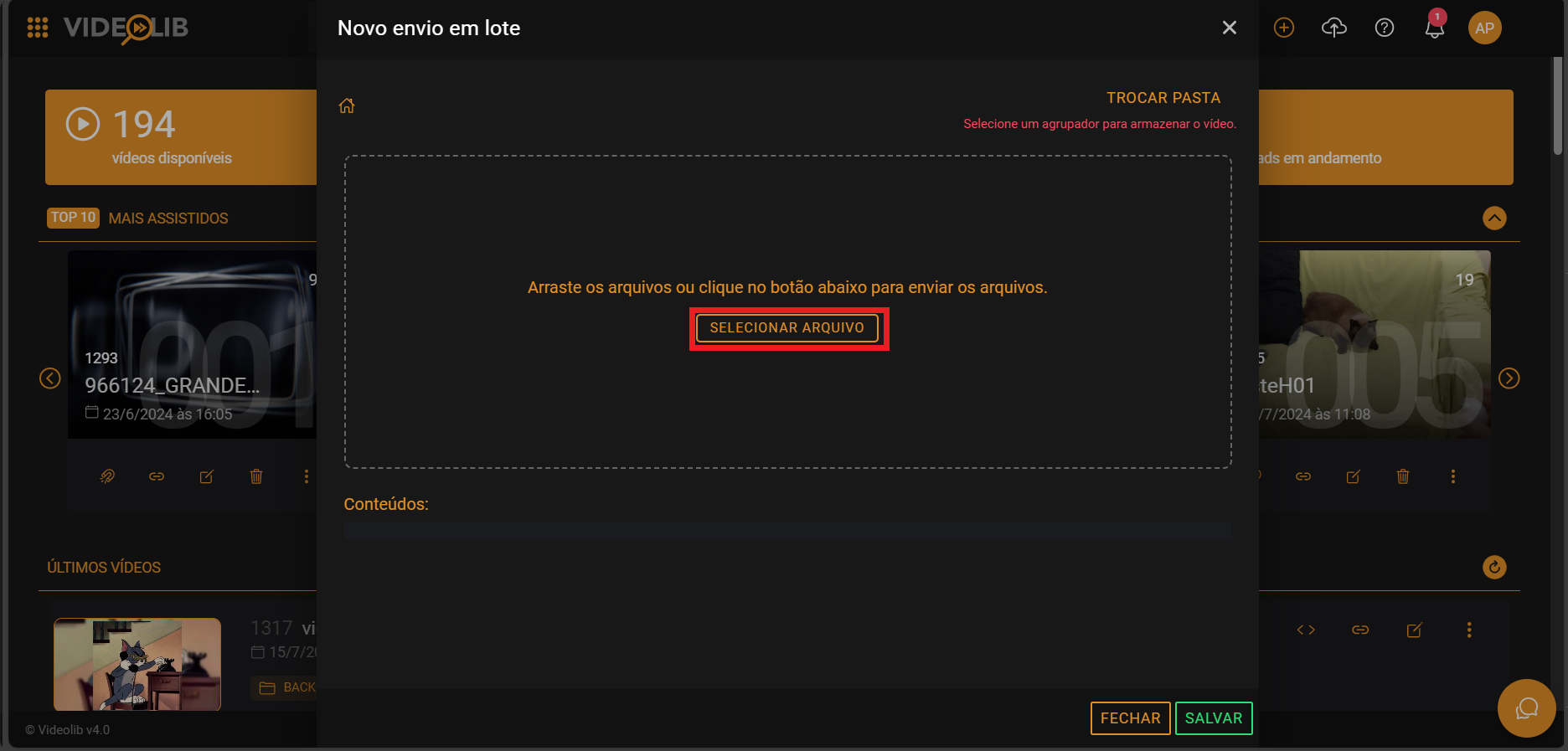
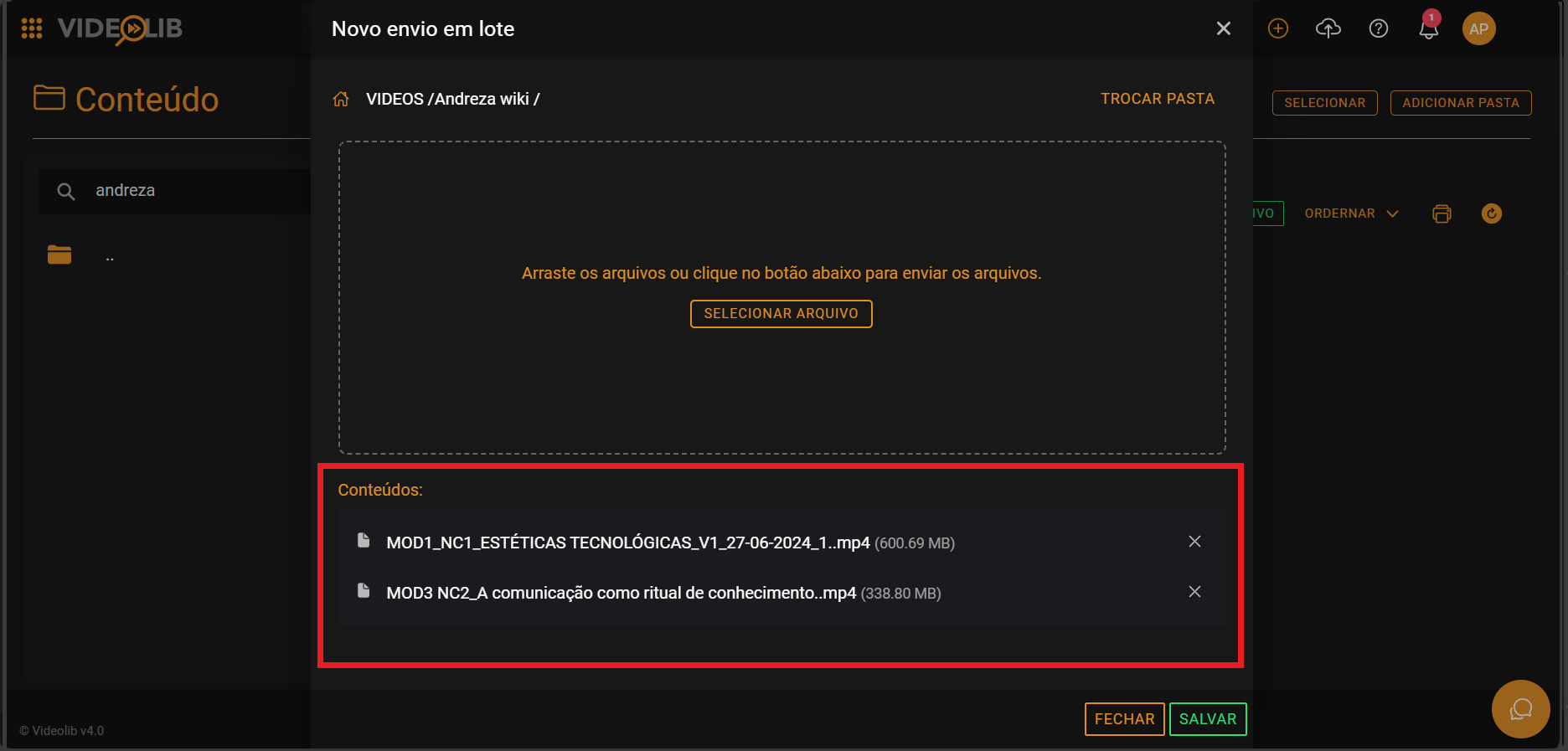
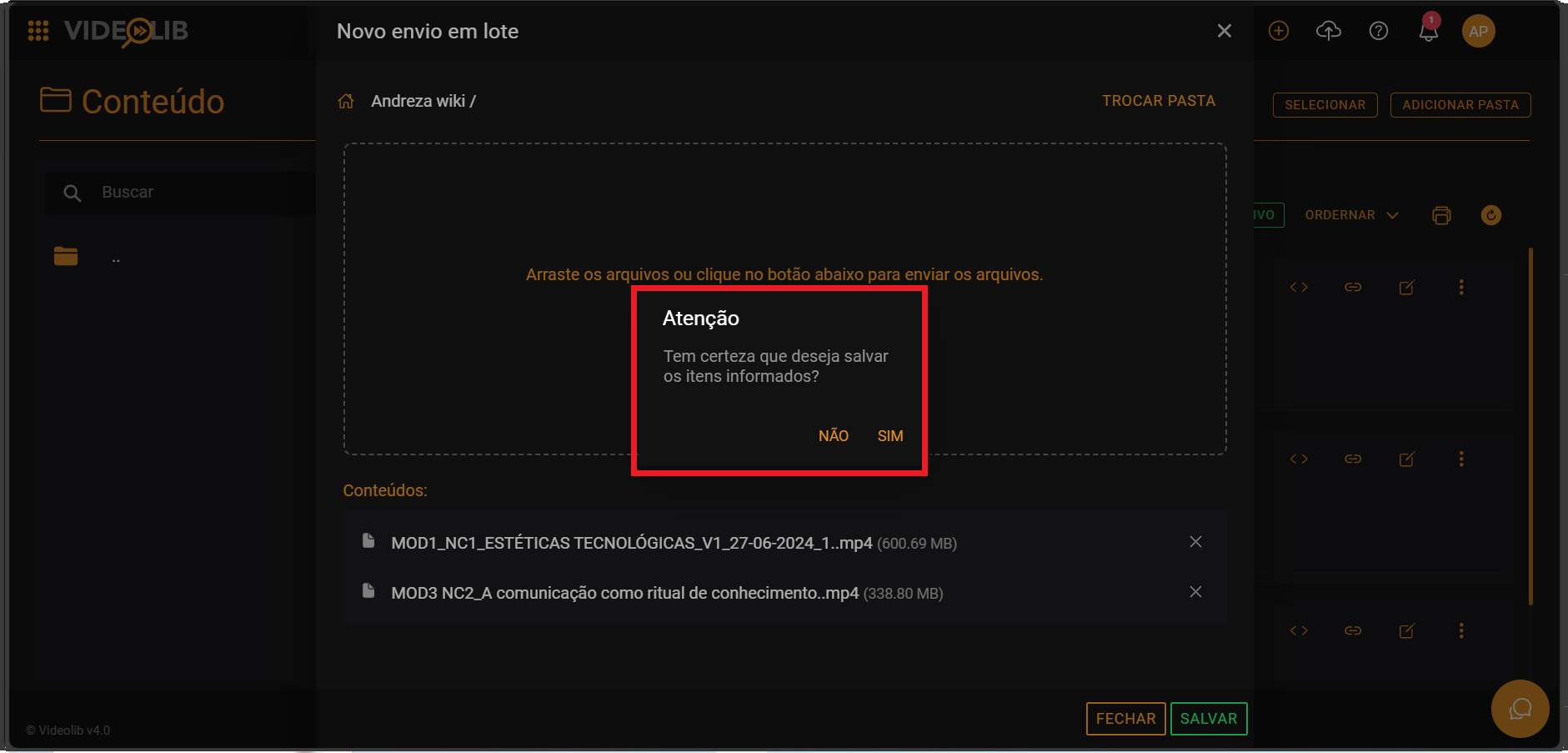
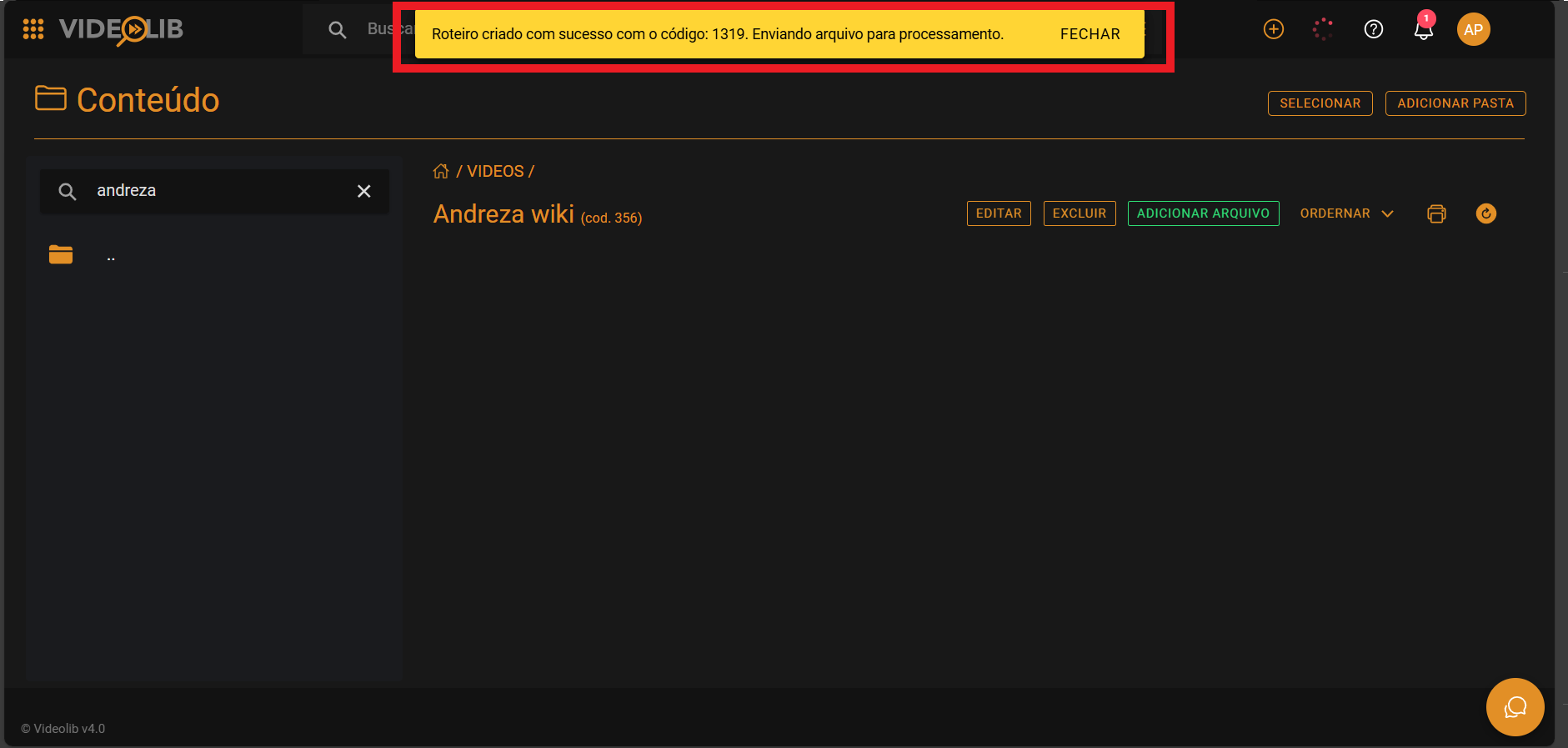
Bulk Video Upload
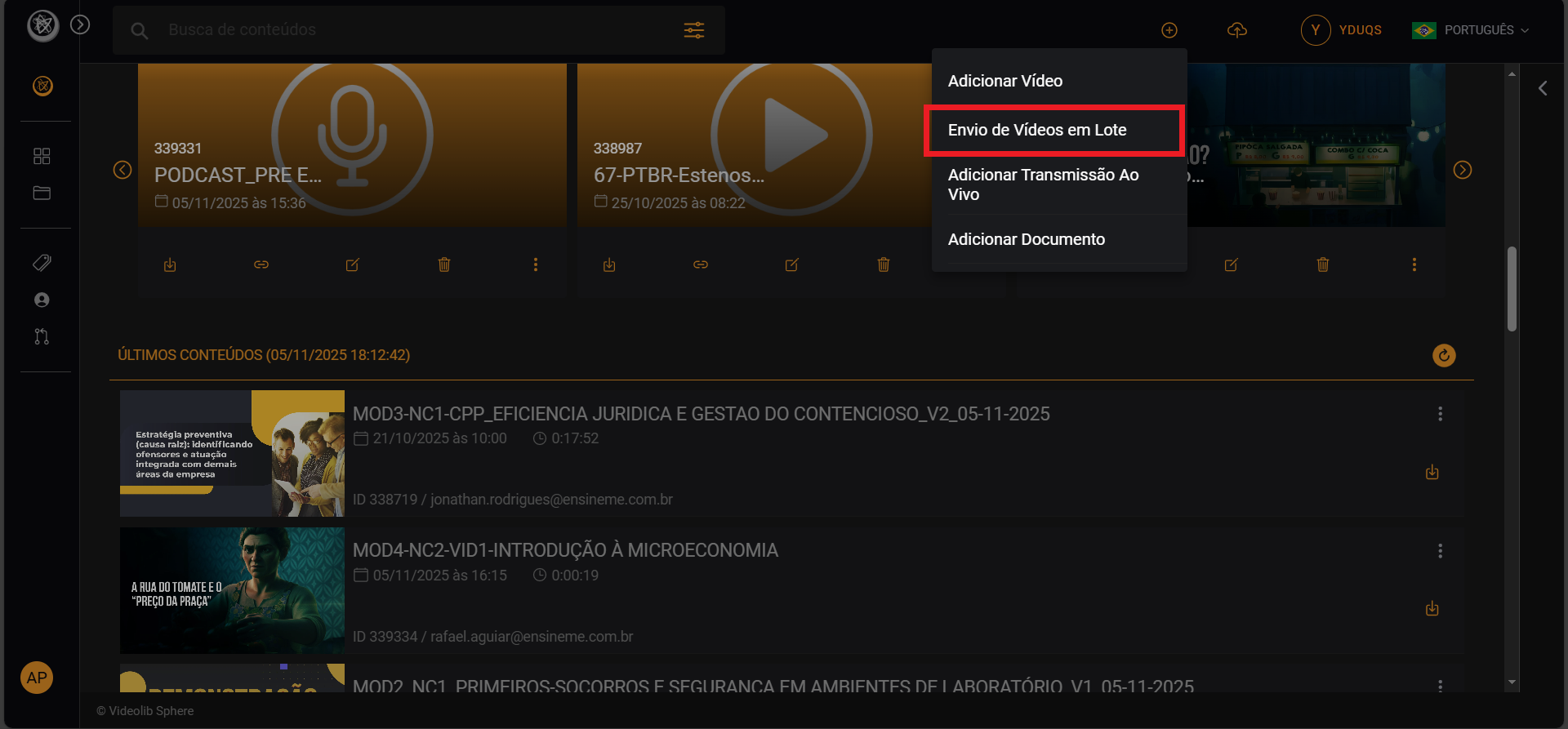
Upload multiple files/folders at once by dragging files or using "Select".
Add Live Stream
Select "Add Live Stream", fill in the fields, and click "Add".
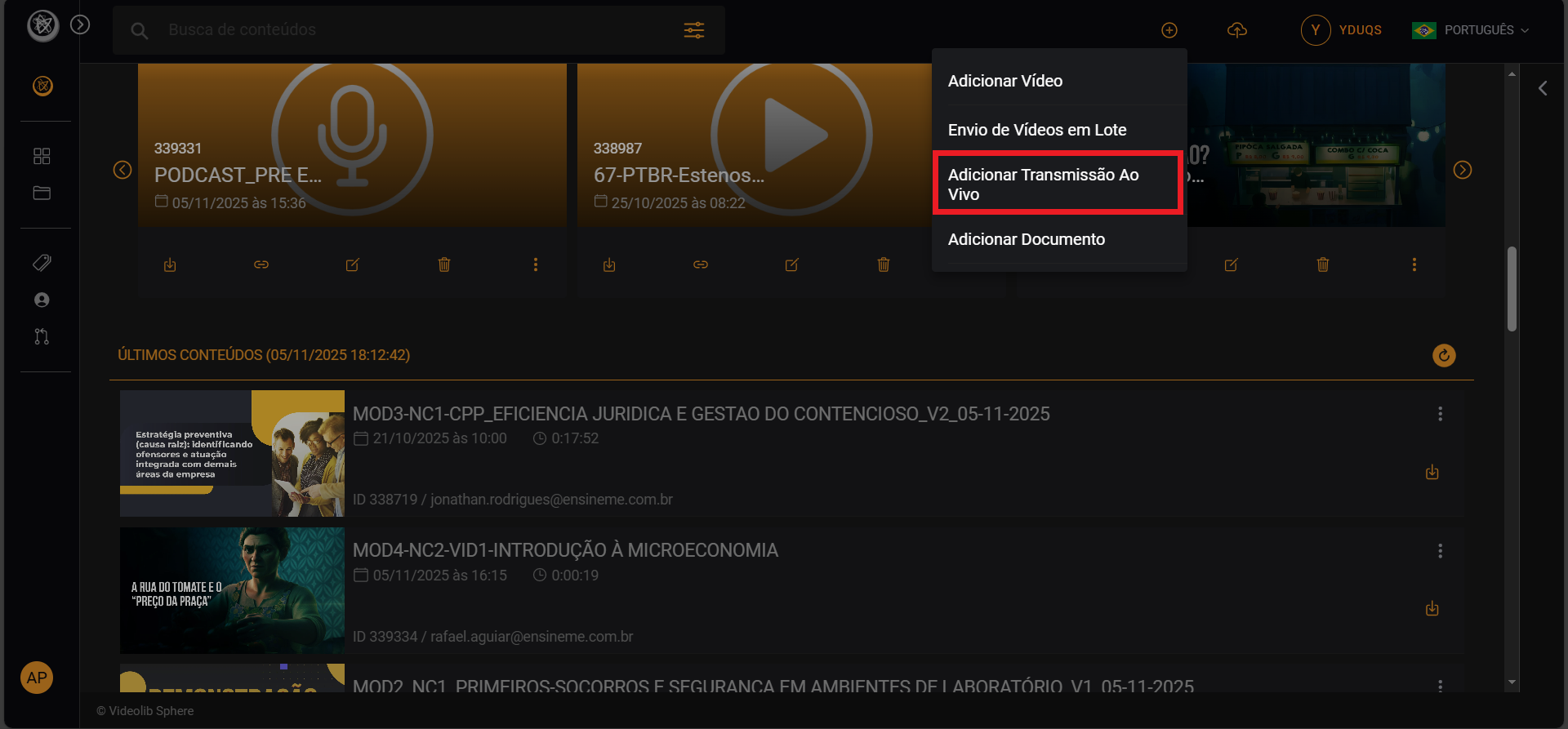
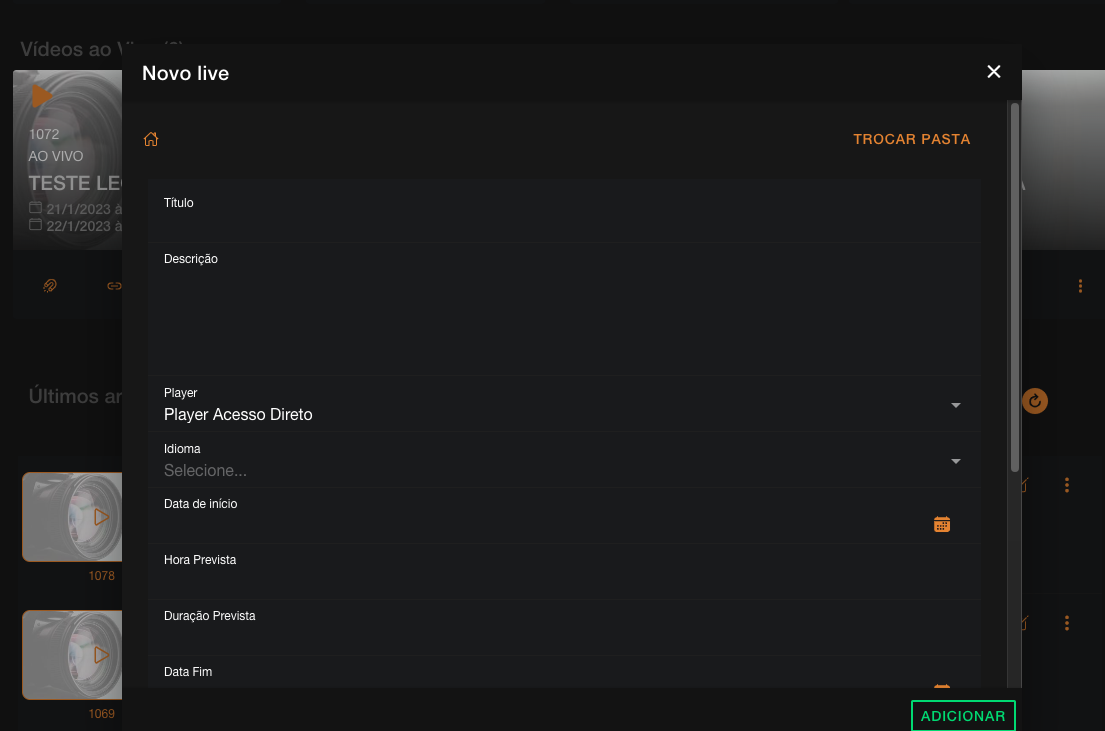
See also: "Podcast and Live".
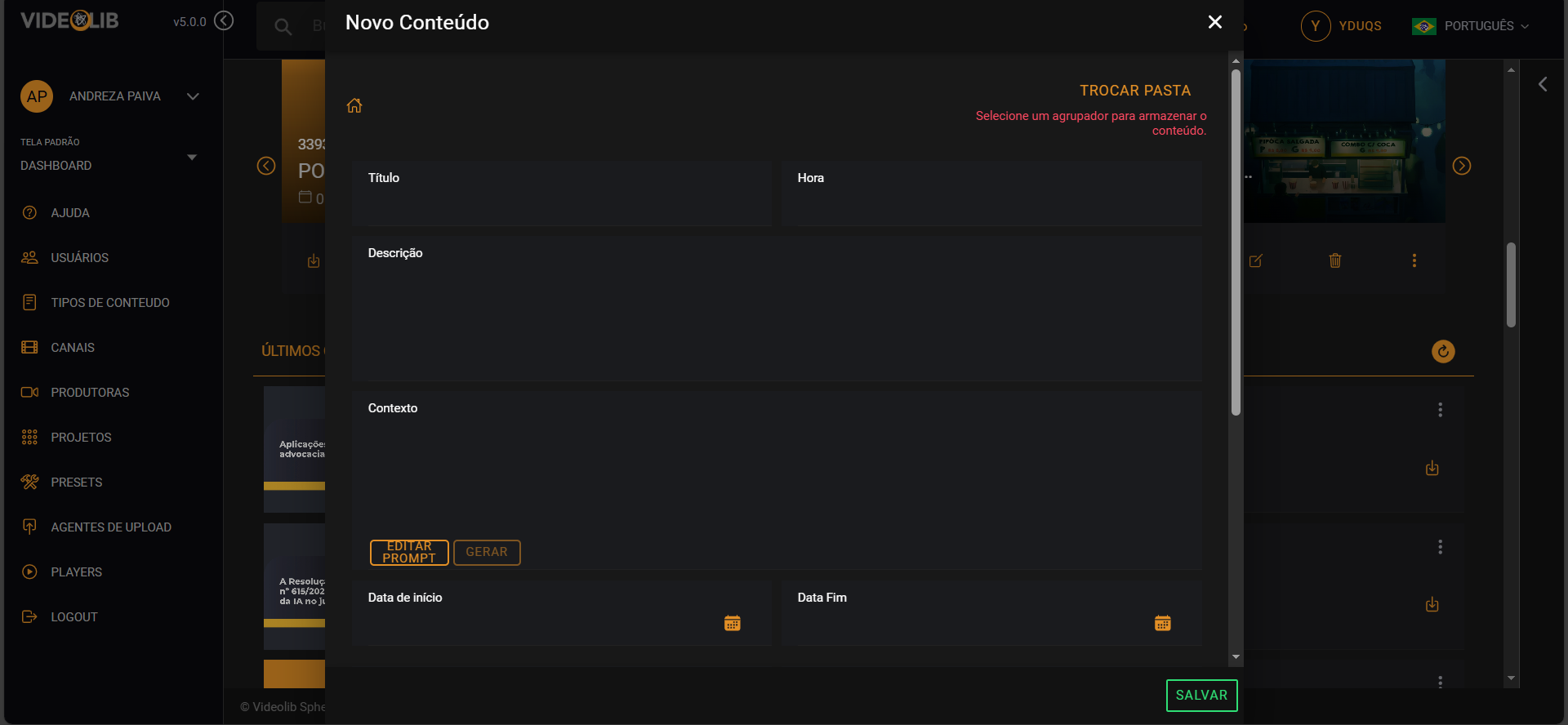
Add Document
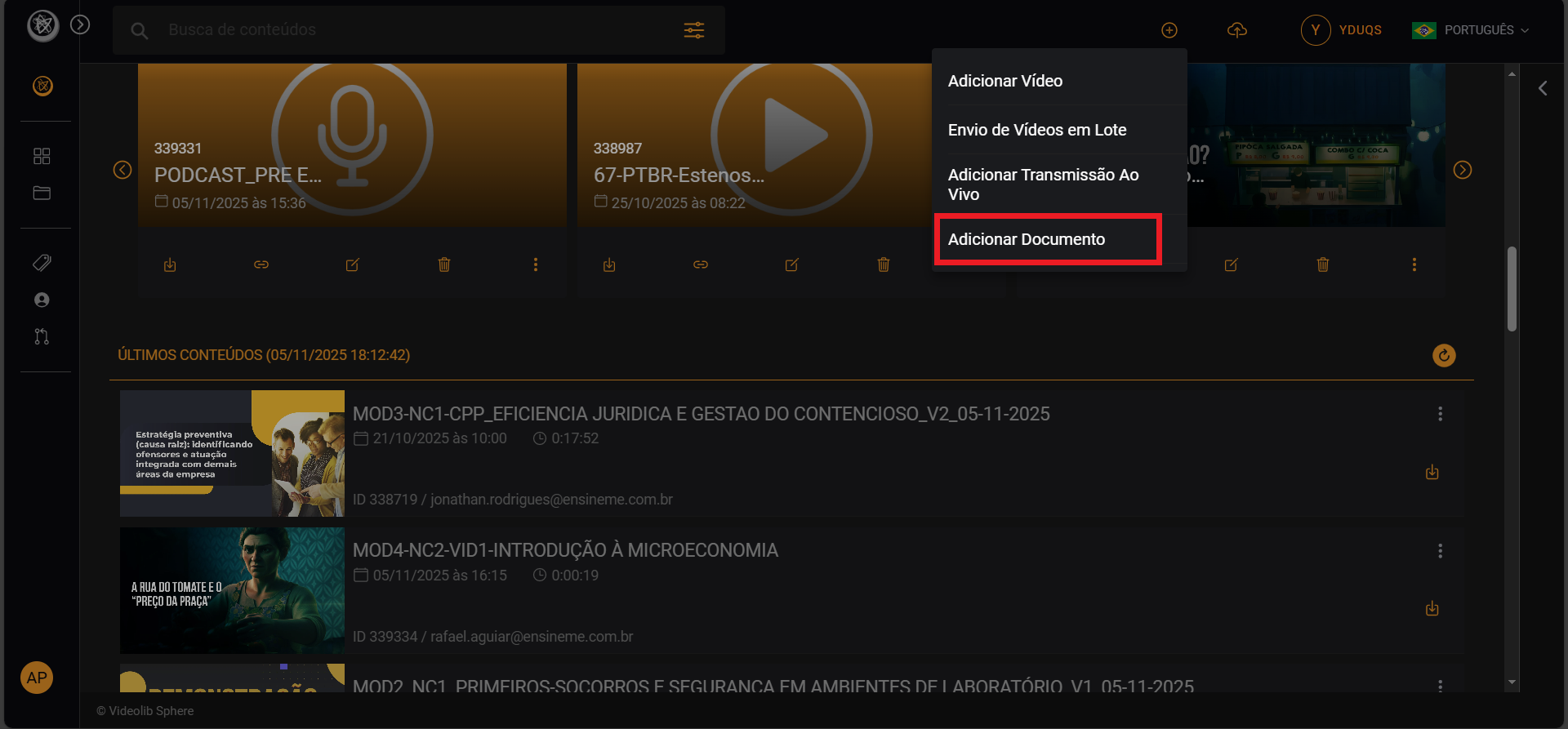
After entering the data, click "Save". Description and context are used to train AI/Sphere.
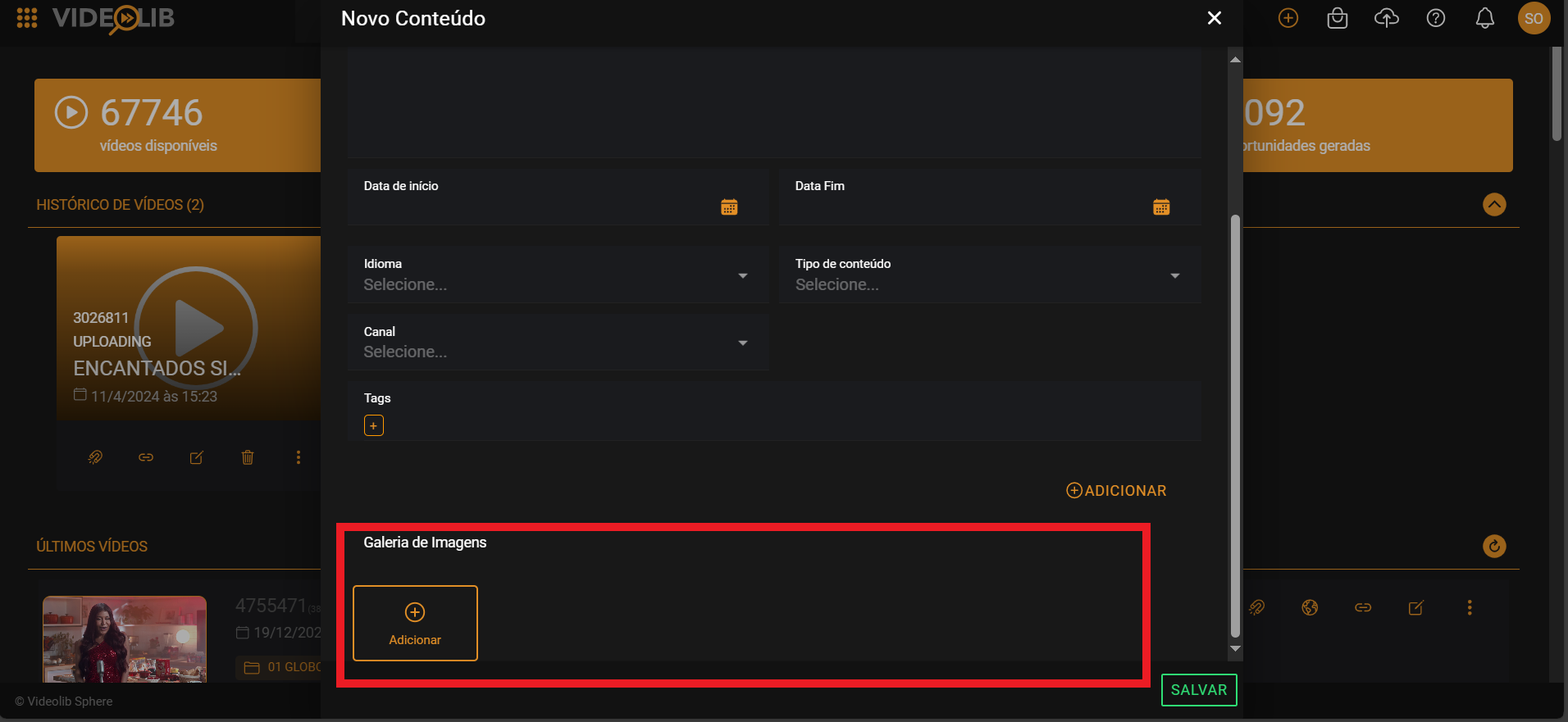
Add Midia Globo Agenda
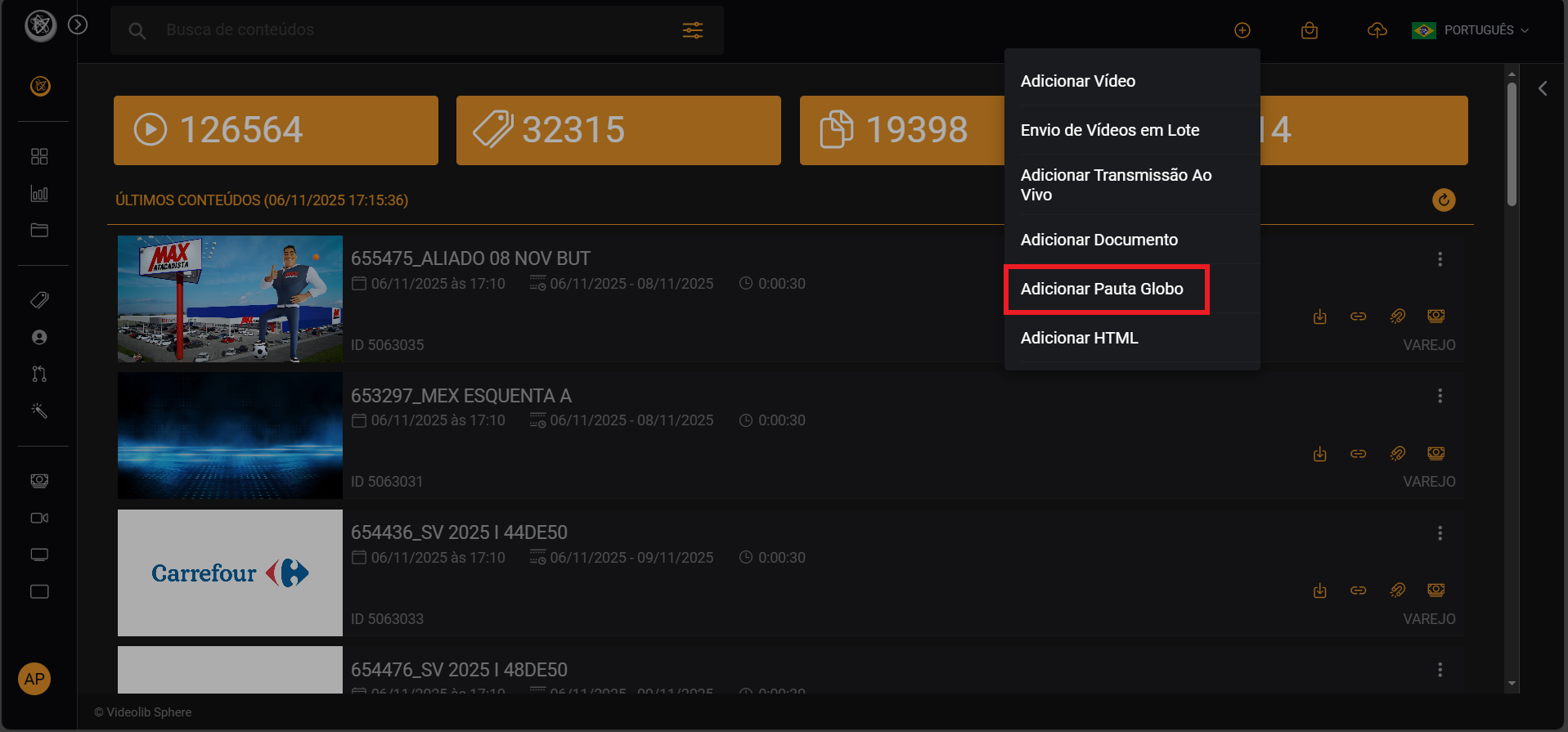
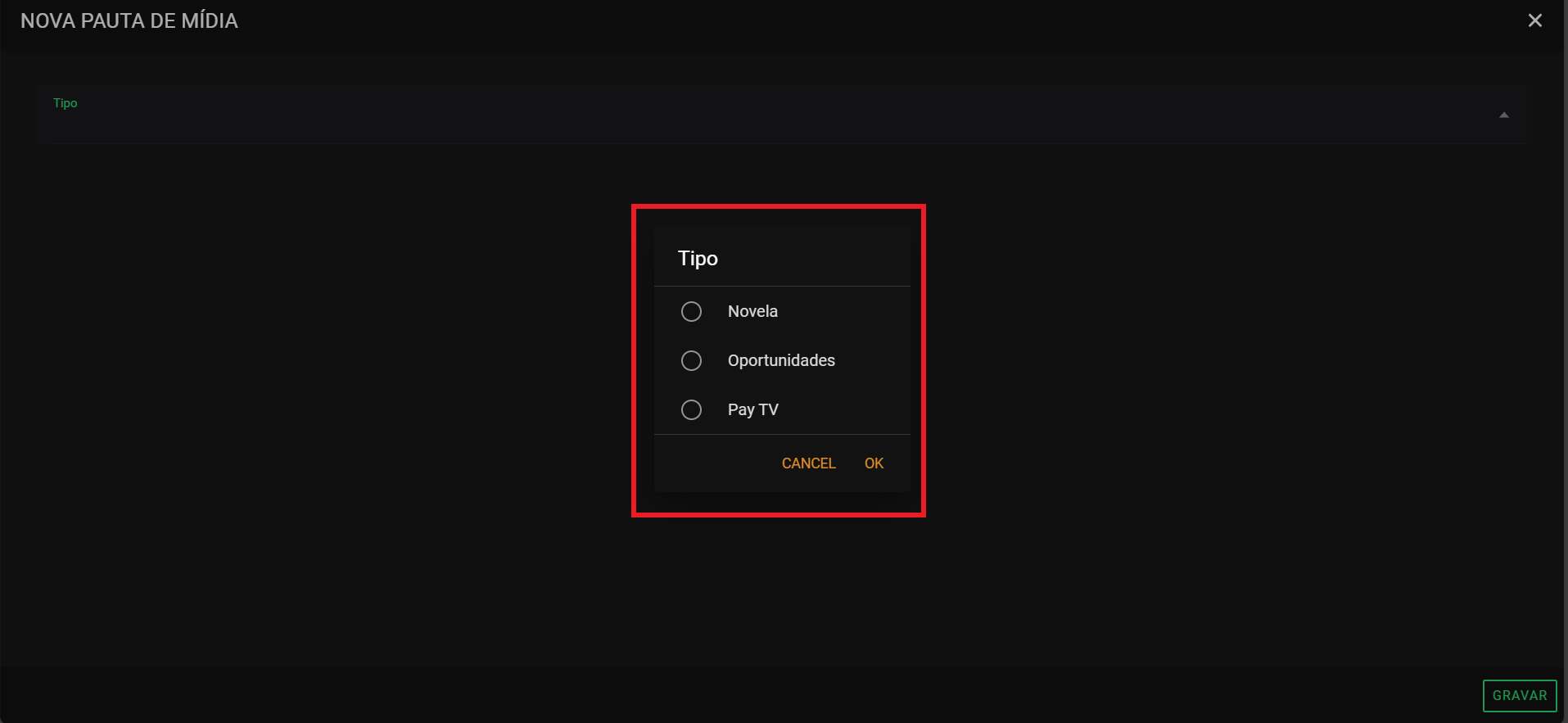
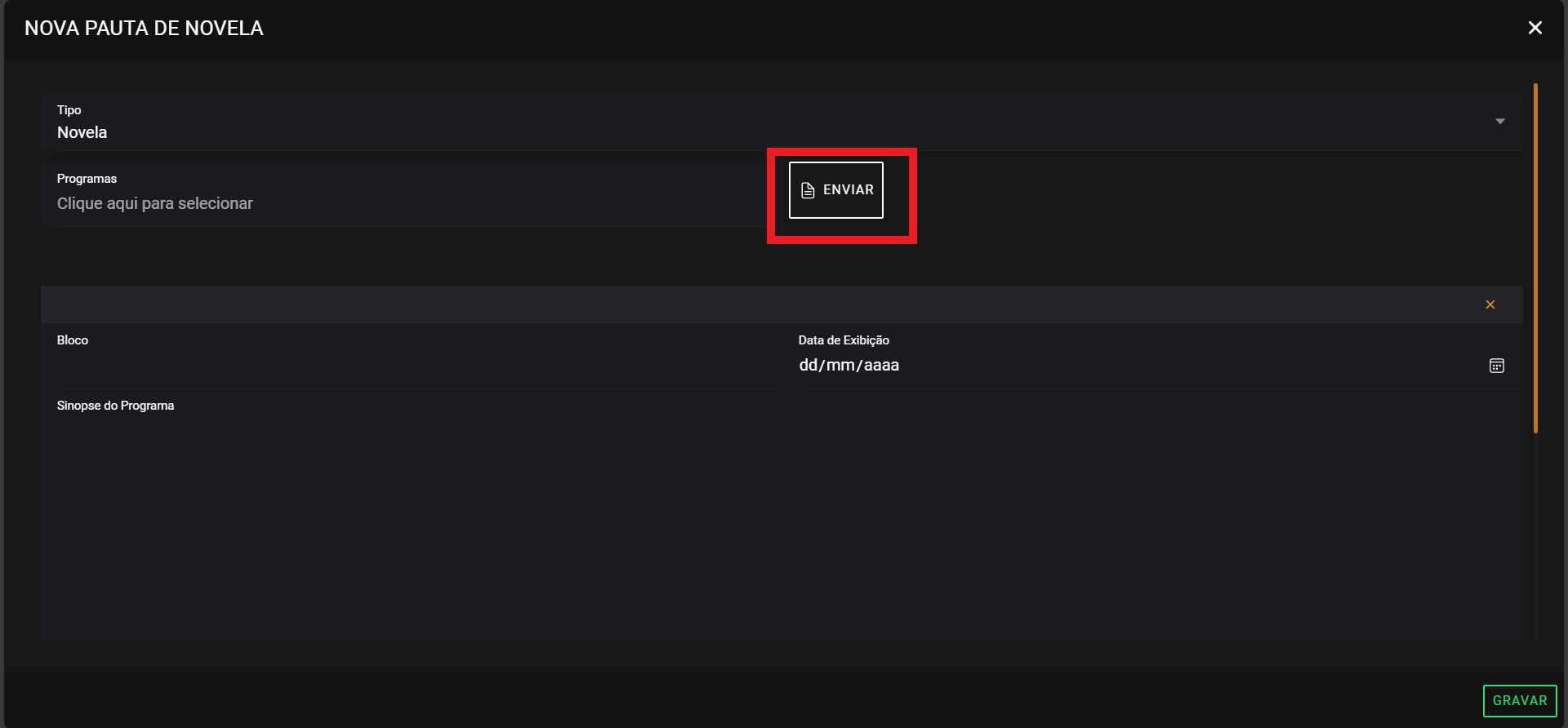
Choose the agenda type, fill in required fields, upload the file, and click "Save".
Add HTML
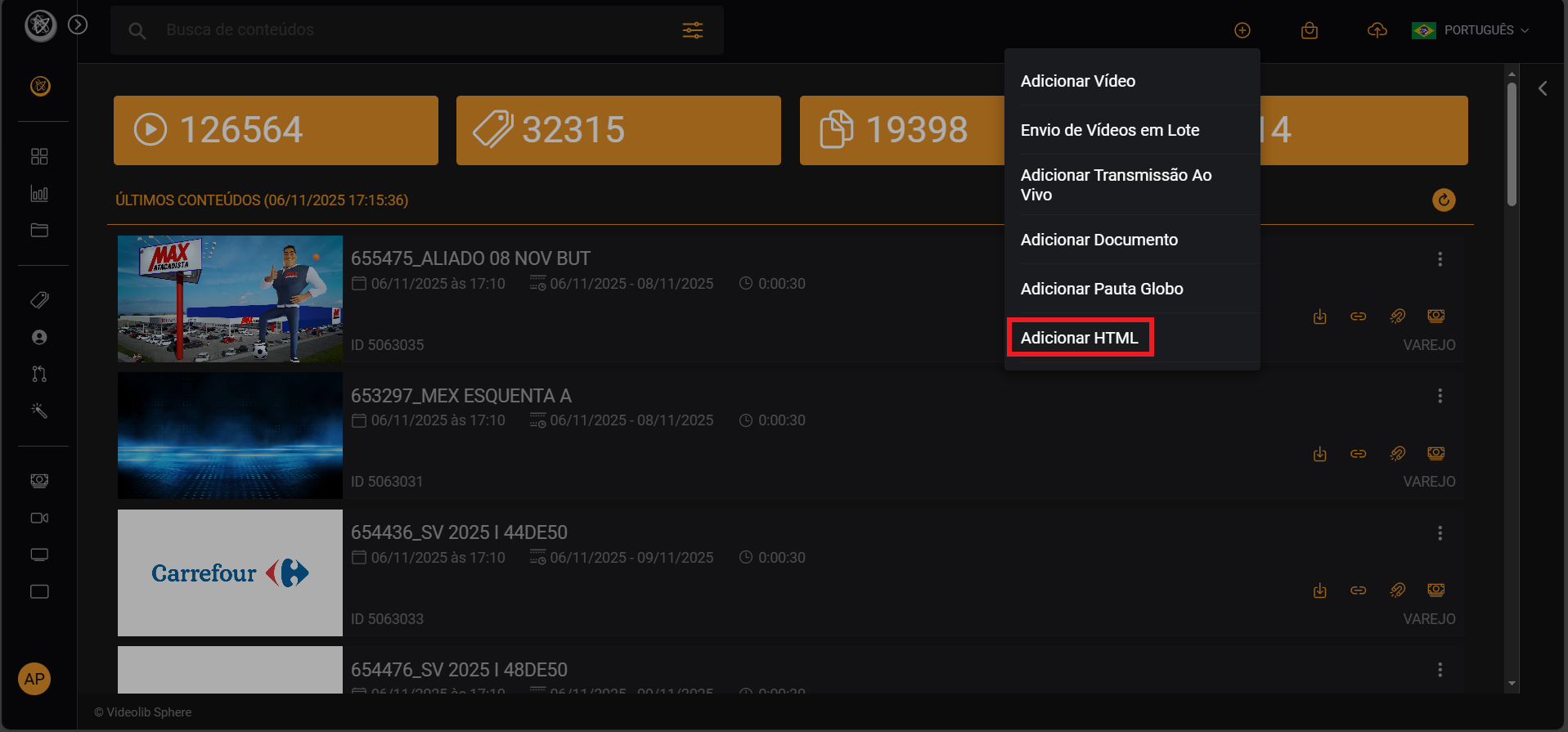
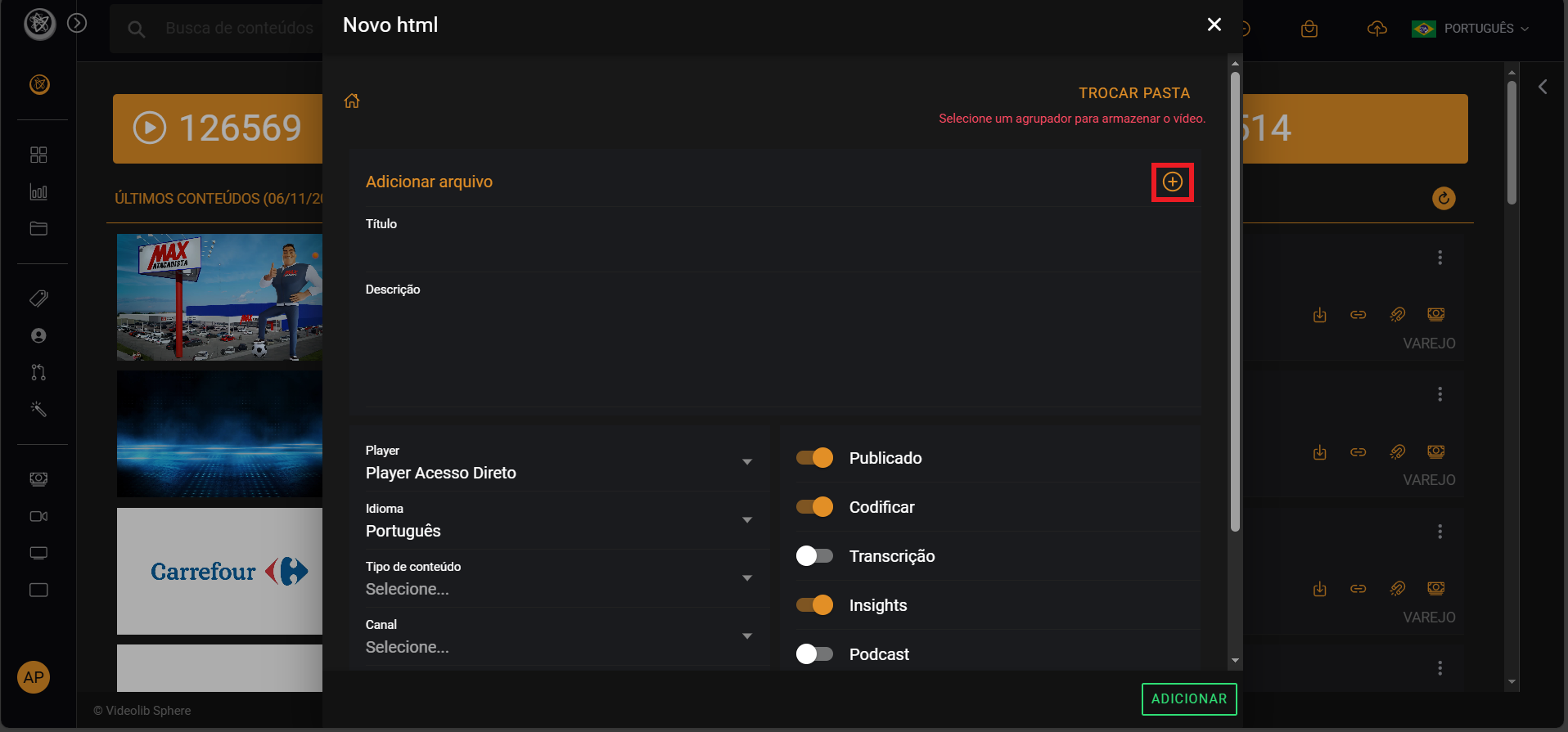
Fill in the required data, upload the file with "+", and click "Add".